
Install the desktop app
LmBox is the desktop app that works with your editing app. This page covers the app itself. To add plug-ins for Premiere Pro, After Effects, DaVinci Resolve or Final Cut Pro, see Plug-in manager.
Windows
- Save the installer from the download page. On Windows it is a
.zipfile. Unzip it and run the installer. - Double-click the installer and follow the prompts.
- If Windows shows "Unknown publisher" or "Do you want to run this?", choose Run anyway, or More info → Run anyway. The wording differs between versions.
- When it finishes, open LmBox from the Start menu or the desktop shortcut.
Nothing happens when you install?
- Turn off your antivirus "block unknown programs" option for a moment, then try again.
- If you had an older version, uninstall it first.
Mac (Apple silicon or Intel)
- Save the
.dmgfor your chip from the download page. - Open the dmg and drag the app into the Applications folder. Keep it there. The Terminal commands below assume this path.
First launch
If macOS says the app "can't be opened because the developer cannot be verified":
- Open System Settings → Privacy & Security. Find the blocked app and click Open Anyway.
- Or hold Control, click the app icon, choose Open, then confirm.
Still blocked: "app is damaged"
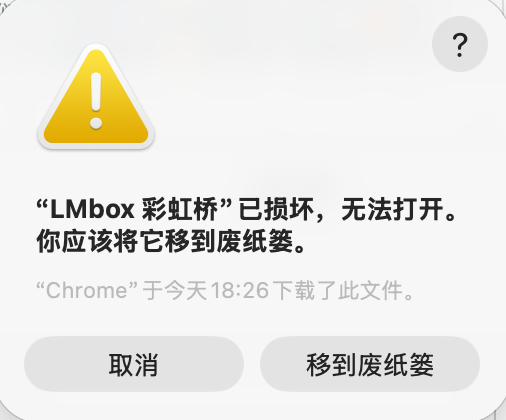
Figure: the macOS system dialog. This screenshot was taken on a Chinese system. English macOS shows the same warning in English.
Copy the app into Applications, then open Terminal. The app name contains Chinese characters, so copy the command exactly. Run one of these:
xattr -cr "/Applications/LMbox 彩虹桥.app"Or this one (it asks for your password):
sudo xattr -rd com.apple.quarantine "/Applications/LMbox 彩虹桥.app"Note
With the second command, Terminal shows Password:. Type the password you use to log in to your Mac. You will not see any characters while you type. Press Return when done.
If macOS still blocks the app, open System Settings → Privacy & Security and click Open Anyway. The wording can differ between macOS versions.
If you still cannot install, contact support with your remote code. We can help remotely.
Apple silicon or Intel?
- Most Macs bought in recent years use Apple silicon. Download the Apple silicon build.
- Not sure? Click the Apple menu at the top left, choose About This Mac, and read the Chip or Processor line.
After you install
Do these once, in this order. The Welcome page in the app points to the same places.
- Install the plug-in for your editing app: Plug-in manager.
- Set up external tools (required the first time): see below.
- Connect to your editing app: Plug-in manager · Getting connected.
Set up external tools (first time)
Waveform previews, some audio and video imports, and format conversion need FFmpeg and FFprobe on your computer. If they are missing, those features show a message that they are unavailable.
Where to set it up
- Click at the top right of the window.
- Open .
- Enter or Browse to the paths of FFmpeg and FFprobe. Fill in both, or leave both empty and let the app look for them.
- Click Check for each one, then click Apply. A green dot next to a setting means it is ready.

Figure: Settings → External tools & media. The screenshot shows the Chinese interface. You can switch the app to English in Settings.
How to get FFmpeg and FFprobe (best first)
- Download & install (recommended). On the same page, click Download & install. The app downloads the tools and fills in the paths for you.
- Cloud drive or backup download. If your network is limited, use Cloud drive or Backup download. Unpack the files, then click Browse and pick
ffmpegandffprobe. - Already installed. Click Browse and pick the programs on your computer.
TIP
You can leave the paths empty and click Apply. LmBox will look for the tools itself. If it still says they are missing, use Download & install or enter the paths by hand.
Other places to know
- Version and updates. The current version is at the bottom of the window.
- Account. Click at the top right to sign in.
Update and uninstall
- Update. Use the update prompt inside the app.
- Uninstall on Windows. Open Settings → Apps, find LmBox, and uninstall it.
- Uninstall on Mac. Drag the app from Applications to the Trash, then empty the Trash.
Still cannot install?
Write to kernelkun88@gmail.com. Tell us your system version and send a screenshot of the message you see. Do not include personal information.