
Settings

LmBox "Settings" (the sidebar and page title just say Settings) is where you configure appearance, notifications, transcoding and local models, audio waveforms, media library behavior, keyboard shortcuts and cache. The gear in the top bar opens Settings; you can also open it from the sidebar via (the route and menu value is setting). Each section is an accordion: click a title to expand it, and only one section stays open at a time.
What you will learn
- Theme color, day/night mode, interface size and sidebar grouping
- Footer prompts, system notifications and webhook / Bark push
- Setting up the transcoding tools and the local inference resource pack
- Audio waveform, media library and media sidebar options
- Changing shortcuts, moving the cache folder and checking macOS permissions
About this page
This page documents the LmBox desktop app's Settings (it is not a Lab feature article). The settings screen inside the old extension is outdated; follow this page and the current app.
Sections at a glance
| Section | What it does |
|---|---|
| Theme & appearance | Color, day/night, interface size, language, simpler top bar, grouped / flat sidebar |
| Notifications & prompts | Prompt sounds, footer messages, system notifications, webhooks |
| Local connections | Let nearby computers find this one; start LmBox / the Toolkit floating toolbar when the editing app opens; allow external agents to connect to this computer |
| Footer work tally | A playful work-hours / "earnings" readout in the footer |
| External tools & media | Paths of the transcoding-related tools, with a download-and-install option |
| Local large models | Offline inference resource-pack folder and per-module downloads |
| Audio & waveforms | Volume, waveform style, cache and sound-name translation |
| Media library | Thumbnail size, longest edge, concurrency and grid type |
| Media sidebar | Remember folder, one-branch-at-a-time expand, width and scan depth |
| Keyboard shortcuts | Global / in-app shortcuts |
| Cache & storage | Cache path, statistics and cleanup |
| System permissions (macOS) | View and jump to system authorization |
Theme & appearance
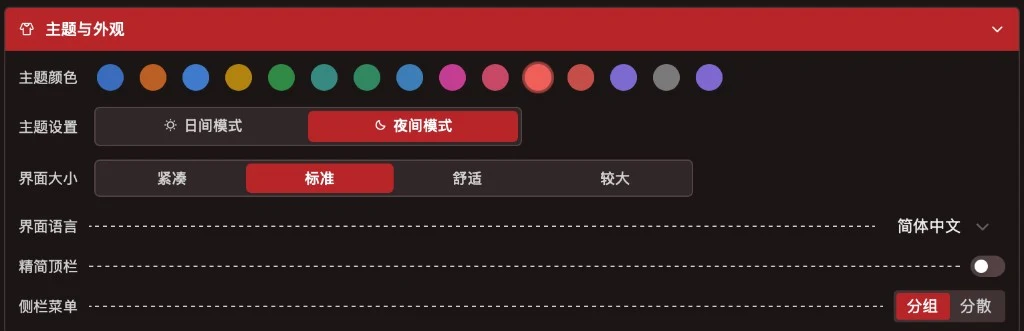
Figure: theme color, day/night mode, interface size, language, simpler top bar and sidebar menu. The screenshot shows the Chinese interface.
| Item | Description |
|---|---|
| Theme color | Click a color circle to switch the brand color |
| Theme mode | Day mode / Night mode |
| Interface size | Compact / Standard / Comfortable / Large |
| Language | For example, English |
| Simpler top bar | When on, the top bar is more compact |
| Sidebar menu | Grouped (frequent items collapse into a second level; clicking a first-level item jumps straight to the feature you used last, and hovering still lets you pick another) or Flat (everything listed); click again to customize |
Notifications & prompts
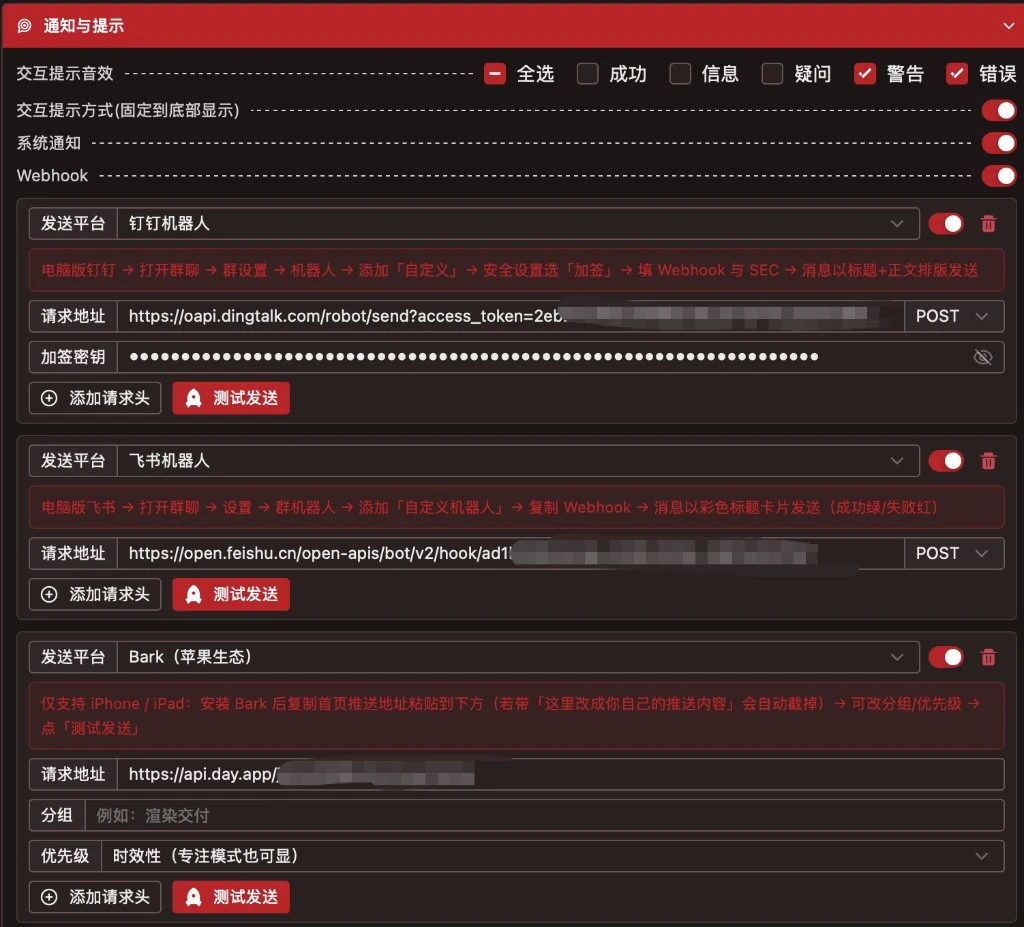
Figure: interaction prompt sounds, footer display, system notifications, and webhook / Bark push. The screenshot shows the Chinese interface.
| Item | Description |
|---|---|
| Interaction prompt sounds | Tick whether to play a sound for success / info / question / warning / error |
| Interaction prompt style | When on, result prompts are pinned to the footer bar (same as global messages) |
| System notifications | Whether to use system notifications |
| Webhook | Master switch; add chat-bot webhooks, Bark and similar targets, fill in the request URL, then use Send test |
Configure the group bot or push address as described by each platform, and do not share screenshots that show secrets.
Local connections
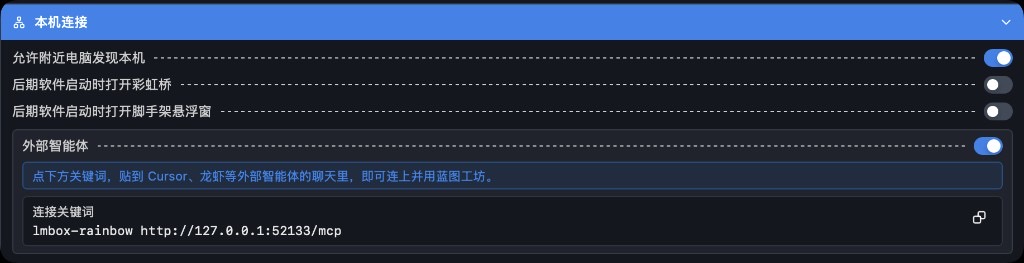
Figure: nearby-computer discovery, starting LmBox / the Toolkit with the editing app, and external agents with the connection keyword. The screenshot shows the Chinese interface.
Turn on Allow nearby computers to find this one (used by local-network features).
Turn on Open LmBox when the editing app starts (off by default): when it is on, the LmBox extension inside your editing app launches the desktop app automatically on startup.
Turn on Open scaffolding floating toolbar when the editing app starts (off by default): when it is on, the extension also opens the Toolkit floating toolbar on startup (and starts the desktop app too).
External agents (on by default) is a single card: turn the switch on, click the connection keyword to copy a short introduction and prompt, paste it into the chat of an external agent such as Cursor or Claude, and let it run a health check to confirm the connection. Turn it off and no agent can connect.
Footer work tally
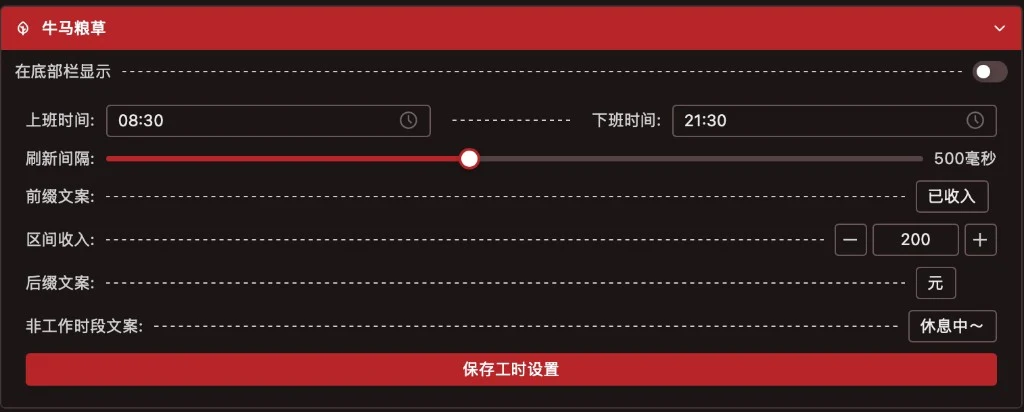
Figure: whether to show it in the footer, plus clock-in / clock-out times, refresh interval and text. The screenshot shows the Chinese interface.
A playful "work-hours earnings" readout: set the clock-in / clock-out times, refresh interval, prefix / range earnings / suffix and the off-hours text, then click Save work-hour settings.
External tools & media
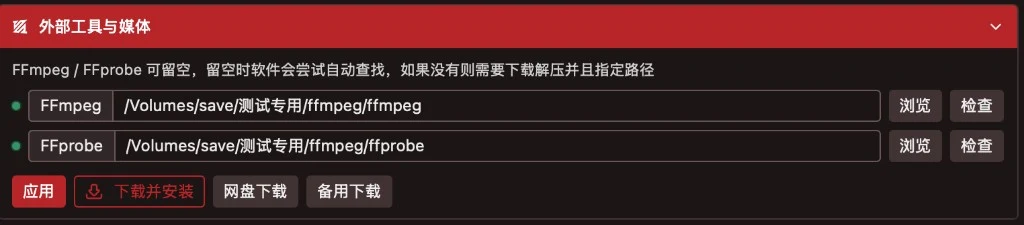
Figure: transcoding tool paths, Browse / Check, and Download and install. The screenshot shows the Chinese interface.
Waveforms, some previews and screenshots depend on the transcoding tools on this computer. You can leave the paths empty and let the app find them; if they cannot be found, use Browse to point to them, or use Download and install. After setting them up, click Apply, and use Check to confirm.
You can also follow the step-by-step guide: LmBox desktop install · Configure the transcoding tools.
Local large models
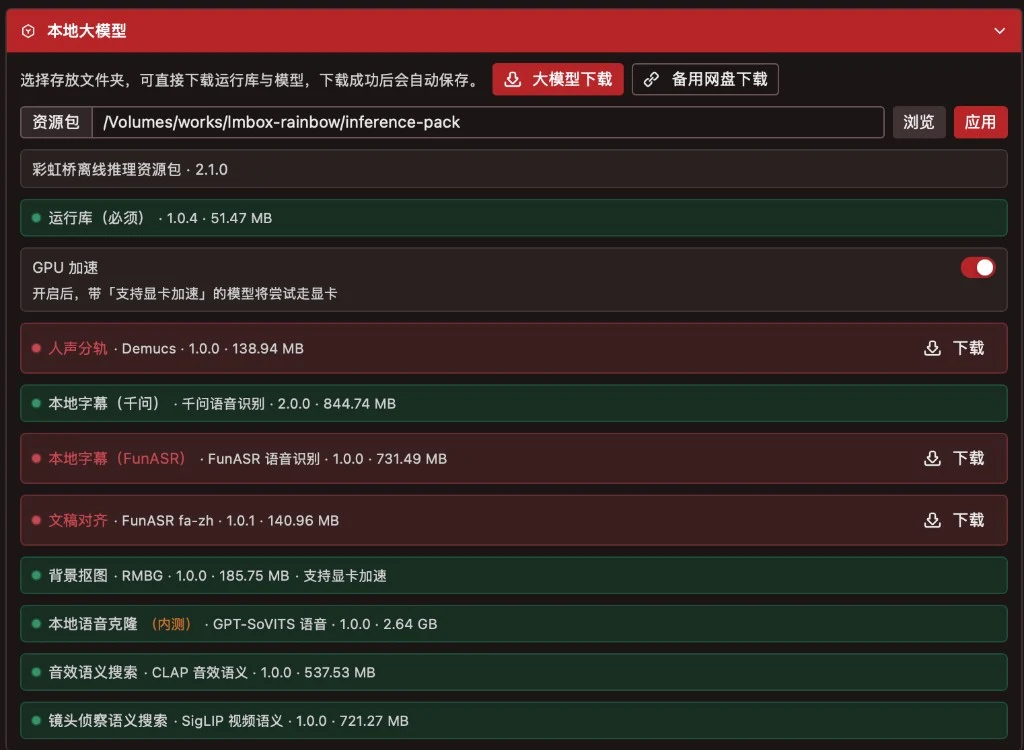
Figure: resource-pack folder, GPU acceleration, and modules such as vocal separation, local subtitles, voice cloning and semantic search. The screenshot shows the Chinese interface.
- Choose the folder for the resource pack and click Apply
- When needed, use Download large models to get the whole pack
- Click Download per module (a green dot means ready); you can turn on GPU acceleration
Common modules: runtime (required), vocal separation, local subtitles, script alignment, background cutout, local voice cloning, sound-effect / shot semantic search and more. They are large, so leave enough disk space.
Audio & waveforms
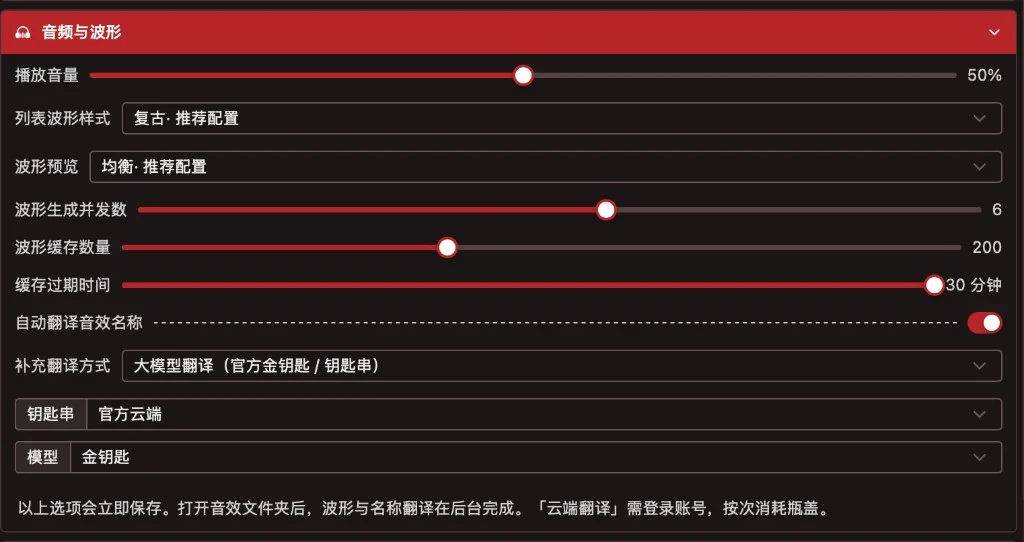
Figure: playback volume, waveform style with concurrent cache, and automatic sound-name translation. The screenshot shows the Chinese interface.
Options are saved immediately. You can adjust playback volume, list / preview waveform style, generation concurrency, cache count and expiry; you can turn on Auto-translate sound names and choose the extra translation method (such as the official golden key / Keychain). After you open a sound folder, waveforms and translated names finish in the background. See Sound library for details.
Media library
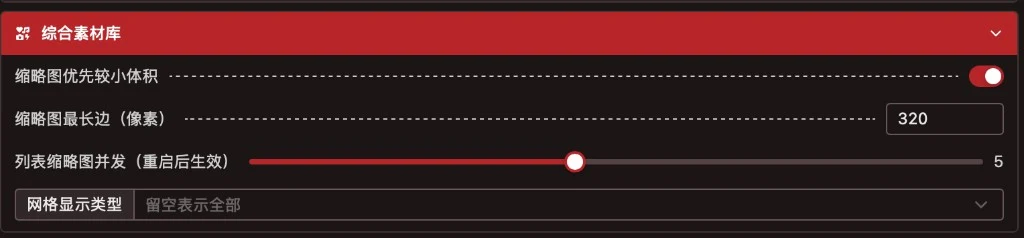
Figure: smaller-thumbnails-first, longest edge and list-preview concurrency. The screenshot shows the Chinese interface.
| Item | Description |
|---|---|
| Prefer smaller thumbnails first | Prefer the preview image format that takes less space |
| Thumbnail longest edge | Pixel limit (for example 320) |
| List preview concurrency | How many list previews are generated at once; default 6, up to 16; changes are saved and take effect immediately |
Media sidebar
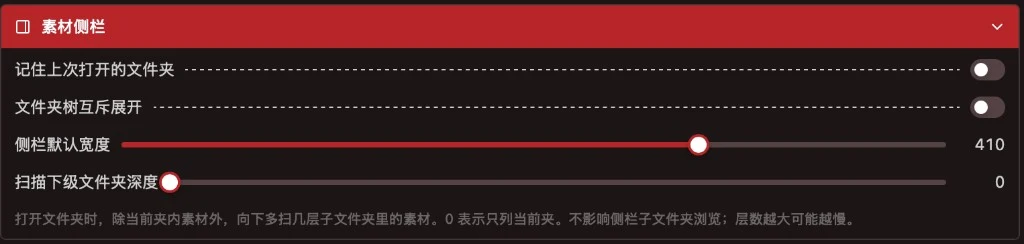
Figure: remember folder, one-branch-at-a-time expand, default width and subfolder scan depth. The screenshot shows the Chinese interface.
| Item | Description |
|---|---|
| Remember last opened folder | Next time you open the media page, go back to the last folder |
| Expand one folder branch at a time | Expanding one branch collapses the others |
| Default sidebar width | Width in pixels |
| Subfolder scan depth | Scan extra sub-levels when opening a folder; 0 lists only the current folder; a larger depth may be slower |
Keyboard shortcuts
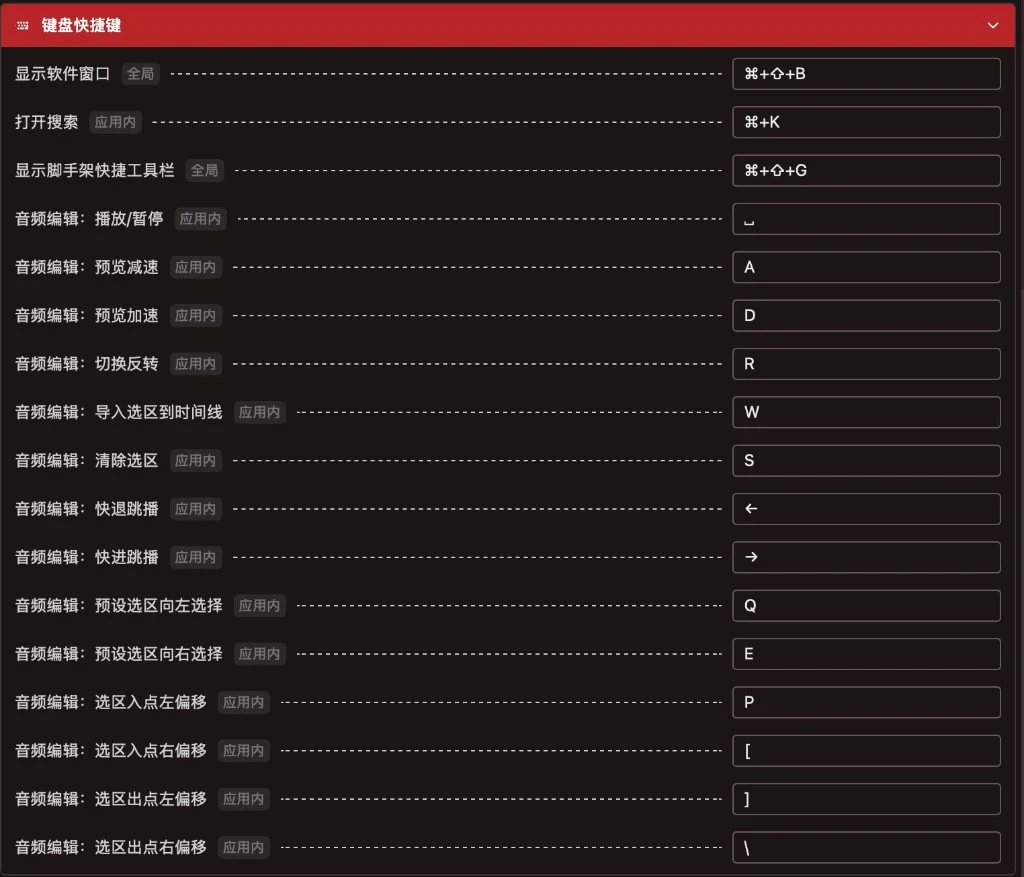
Figure: the list of global and in-app shortcuts (including audio editing). The screenshot shows the Chinese interface.
Each item is marked Global or In-app. Click a shortcut box to change the key. Common ones include showing the app window, opening search, the Toolkit toolbar, and audio-editing playback / selection. After changing a key, what the app saves is what applies.
Cache & storage

Figure: cache path, choose path, reset, statistics and cleanup. The screenshot shows the Chinese interface.
Use Choose path to move the cache folder, Reset to go back to the default, Cache statistics to see usage, and the trash icon to clean up. Pick a location that is writable on this computer and has enough space.
System permissions (macOS)

Figure: check Full Disk Access, Accessibility, Screen Recording, Microphone and other permissions. The screenshot shows the Chinese interface.
Click Check permissions to view them and jump to System Settings. This section only appears on macOS.
FAQ
Q: Waveforms or previews keep failing?
A: Go to External tools & media, check the transcoding tool paths and click Check; if it still fails, use Download and install and then Apply.
Q: Local subtitles / vocal separation say a model is missing?
A: Open Local large models, confirm the resource-pack path is applied and the module has a green dot; click Download for anything not downloaded yet.
Q: I can't see operation result prompts in the footer?
A: Turn on "Interaction prompt style (pinned to the footer)" in Notifications & prompts, and make sure the related prompt sound / notification switches are not turned off.
Q: Shortcuts do nothing?
A: Check whether the item is Global or In-app; in-app shortcuts need the LmBox window in front. Open Keyboard shortcuts to see whether the key was changed.
Further reading
- LmBox desktop install
- Sound library
- Toolkit
- Devices
- Desktop release notes (Chinese only for now)
Release notes
2.9.0In the grouped sidebar, clicking a first-level item jumps straight to the feature you used last; hovering still lets you pick another.2.4.1Fixed the media library list-preview concurrency not being saved after you changed it; the new value is now remembered and used right away to generate covers.2.4.0The section is now "Local connections"; you can allow an external agent (MCP) to connect to this computer, and copy a keyword to callBlueprint lab.2.4.0An external agent (MCP) can point Blueprint lab input nodes at local files and view settings per node.2.4.0An external agent (MCP) can run just one node of a blueprint, or continue from a given step to the end.2.4.0An external agent (MCP) can run the steps inBlueprint labthat take time to wait, such as image generation, stickers and cutouts.2.4.0An external agent (MCP) can open a feature page from the sidebar, which helps newcomers find the entry.2.4.0An external agent (MCP) can look up the website's feature introductions and open the matching sidebar page.1.9.3"Connection & LAN" lets you choose to start LmBox automatically when the editing app opens, or to open the Toolkit floating toolbar automatically (both off by default).1.9.0System notifications can be turned on; completion-reminder push can be configured (chat-bot webhooks, Bark and plain-text targets), with multiple targets and test sending.1.6.0Local large models can download the resources needed for "sound-effect semantic search"; after downloading you can build features offline and search by description.1.4.8The media sidebar can be tuned: remember browsing position, sidebar width, folder scan depth and more; fixed the issue where the runtime was already downloaded but still asked for an upgrade, and local subtitles could not be used.1.4.0"Simpler top bar" can be turned on; you can drag to customize which sidebar items show and in what order; the interface language moved into "Theme & appearance".1.3.2The local large-model runtime and offline model list were updated; after upgrading, go to "Local large models" and download the runtime and needed models again.1.0.0Theme & appearance supports theme color, day/night mode and interface size (Compact / Standard / Comfortable / Large).0.3.0External tools can download and install the transcoding tools from the cloud in one click.0.2.9The Local large models page can download models and runtime from the cloud.0.2.8Fixed the case where applying a resource pack said everything succeeded while a module was not ready; it now explains what still needs to be downloaded.0.2.7Local large models can turn on GPU acceleration; cloud download of models and runtime is supported.0.2.3Added the "Local large models" tab for resource packs such as vocal separation and local subtitle recognition.