
Review markers

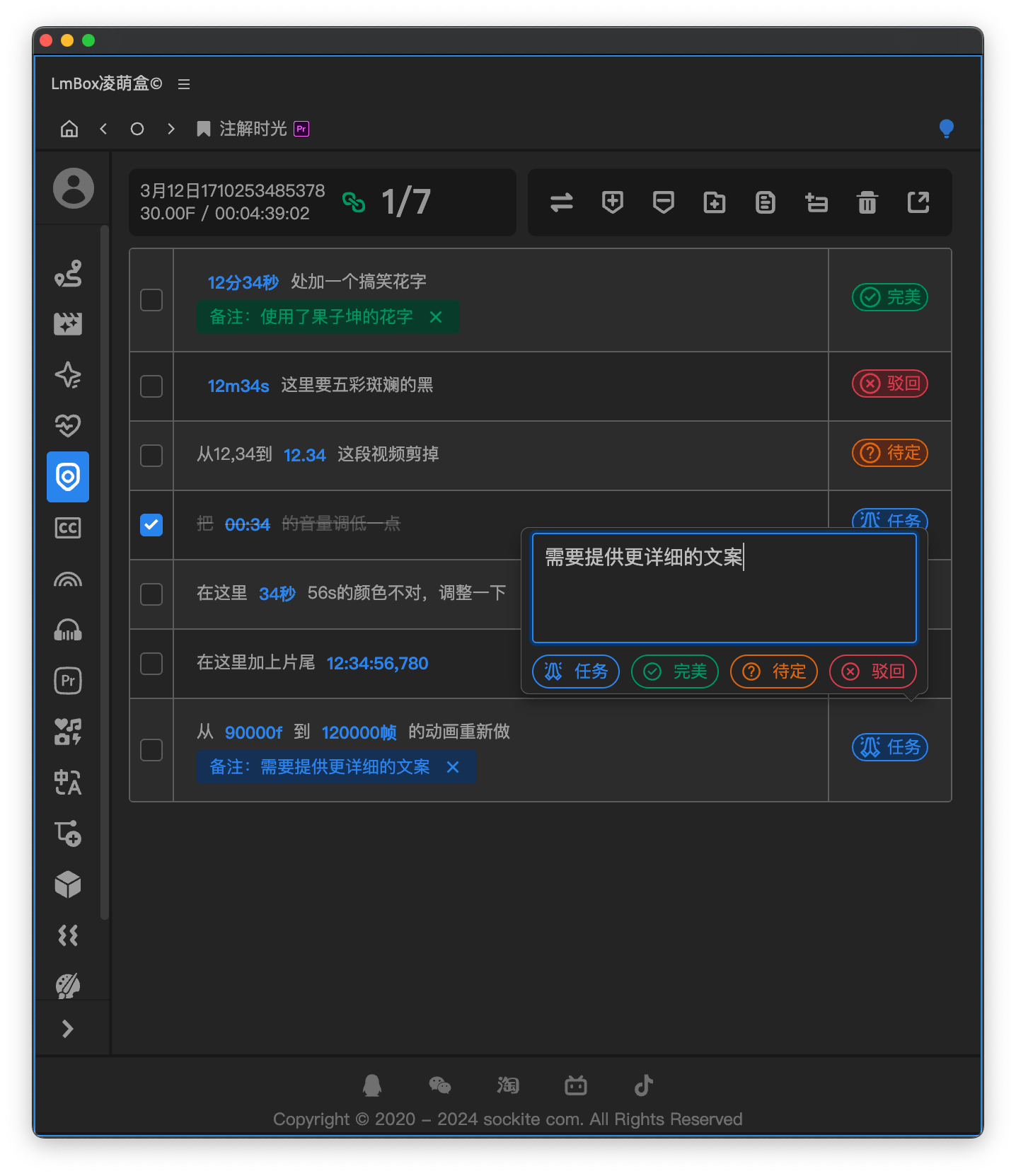

Feature overview
A tool for managing client feedback inside your editing app, supporting Adobe Premiere and DaVinci Resolve. Jump to the timeline from the time points in the notes, and manage progress, revision comments and remarks for more effective collaboration and review. In the desktop app it appears as Markers.
Version notes
This is a feature provided from LmBox V3.8 onwards; the extension upgrade notes cover it. It is iterating quickly, so keep an eye on updates.
How to open Review markers
On the extension home page, click the button at the bottom center, then click in the sidebar.
Project library
Click the project library at the far right of the toolbar to open saved reviews. Each review is an independent project; right-click to rename it, change its description or delete it. Linking a timeline only binds the current project and never swaps in other content. When you open a linked project and its timeline is still in the current editing project, the app switches to it too.
Screen overview
- : click to link the current timeline; click again once linked to unlink. To change timelines, unlink first, switch to the new timeline, then link again.
- : syncs the existing time points back from the markers on the timeline. For now it works as a refresh button that checks whether the current timeline already has markers.
Create the note entries
- : imports a script table file, supporting "csv", "txt" and subtitle "srt" files. "csv" is recommended, since you can export and edit it in Excel. Note that this overwrites the script entries you currently have. For the recommended layout, see Recommended format and Timecode formats.
- : type text into the input box and it is split line by line into valid entries, which suits text you copy and paste.
- : a good choice if you need to add one entry on the spot, because it adds to what you have rather than starting over. The tool also has two quick buttons for adding text: add a and add a
Timeline markers
- : creates markers on the timeline in bulk from the recognized timecodes (if any).
- : deletes the markers at those timecodes in bulk (if any).
Remarks
- Right-click an entry to edit the text, copy the entry, get or clear a still frame, or delete the entry. When copying, any remark is included.
- After you right-click "Get still frame", hold the mouse over the timecode to show the picture at that moment; with no still frame, nothing shows. It is still there the next time you open it.
- exports the script table as a csv file, which you can open and edit in spreadsheet software such as Excel.
Recommended format
There is no strict requirement. We suggest importing a csv file; see the table below for the layout (a csv exported from Excel works, of course). If you like, you can use your own layout instead, even plain text.
| No. | Done | Note | Remark | Status |
|---|---|---|---|---|
| 0 | true | Cut between 00:01 - 00:05 | ✕ | Perfect |
| 1 | false | Add fancy text at 5 seconds | Content? | Pending |
Timecode formats
- hour:minute:second:millisecond, such as
12:34:56,780,12:34:56;780 - hour:minute:second:frame, such as
12:34:56:12, - hour:minute:second, such as
12:34:56,12h34m56s - minute:second, such as
12:34,12m34s,12,34,12.34 - second, such as
00:34,34s - frame, such as
90000f
Video introduction
Release notes
2.3.2Reviews are saved as independent projects. Open them from the project library on the right, and change their name and description. Linking a timeline binds only the current project and will not replace what you are editing.2.3.2A linked timeline can be unlinked by clicking again. The toolbar is now split into timeline, entries, export and project library, with the project library entry at the far right.2.3.2Entries are now a card list; edit and delete go through right-click, and copying an entry includes its remark.2.3.2When you open a linked review from the project library and its timeline is still in the editing app, the app switches to it too.2.3.2Right-click an entry to get a still frame, saved in the current review. Hover over the timecode to see the picture; with none, nothing shows.2.3.2Fixed the right-click menu appearing in the wrong place. It now follows the mouse.0.2.5Added a history sidebar. It now loads only after you link a timeline by hand, so the page opens more smoothly.0.2.5Click or right-click to edit an entry, and copy it, set its status, jump to the first time point or delete it.