
Fusion Lab


"Fusion Lab" in LmBox is for DaVinci Resolve users: browse Fusion text, transition, generator and effect works by category in the desktop app and download / import only what you use, with no need to install piles of .drfx packs into the DaVinci Resolve folder first. Everyone can also upload and share (template creators are welcome to collaborate), settle with caps, or publish members-only works; it also manages and previews local .setting files. The sidebar icon is .
Video tutorial
Public class demo: Fusion Lab (import on demand, text generators onto the timeline, effects and transitions into the library first then drag, publishing and sharing). Open on Bilibili
What you will learn
- Why too many Fusion templates slow DaVinci Resolve down, and how Fusion Lab eases it
- How Discover / Mine / Saved / Inbox, publishing and caps work together
- That template creators are welcome to list works: free, priced in caps, or members-only
- How to browse the Text, Transition, Generator, Effect and other categories
- What
.settingside-car preview and "take preview from the timeline" mean
Guide
This is the Lab guide (main document). For the local preset library see Fusion Presets; for graphics such as OGraf / Lottie see Motion graphics (OGraf / Lottie). Release notes: desktop release notes (Chinese only for now).
What it solves
The traditional way is to bundle lots of templates as .drfx and install them into the DaVinci Resolve folder for good. The more you install, the more likely you hit:
- A slower app start and a sticky interface
- Ever heavier Effects / Titles lists
- A pile of packs on disk that you do not need right now
Fusion Lab works differently:
| Pain point | What Fusion Lab does |
|---|---|
| Templates must be installed into the DaVinci Resolve folder first | Browse in Discover and import into the current project / timeline when you use them |
.drfx is large and gets slower the more you install | Works are mostly light .setting files, often only tens of KB in the list |
| Installed but unused packs still take space | Use on demand; some text and generator items can even avoid a disk footprint where possible (follow the current version's behavior) |
| Good templates are hard to share | Publish works to the community; downloads can be settled in caps and authors can earn caps |
Product note
"No disk footprint" means writing as few resident template packs as possible to this computer / the DaVinci Resolve folder, not that there is no cache at all; follow the app's current behavior. For long-term reuse you can still import or save to your own media location.
Desktop screen
Open from the sidebar. The top has Discover / Mine / Saved / Inbox, the left is the category tree and the middle is the work list; Publish is at the top right. Before importing, set the target to DaVinci Resolve in LmBox and keep it connected.
Top bar and community
| Entry | What it does |
|---|---|
| Discover | Browse works already listed by the community (sort by newest and so on) |
| Mine | Manage works you published or keep in your private space |
| Saved | Save works you use often so they are easy to find again |
| Inbox | Questions and replies about works |
| Publish | Anyone can upload and share; set public free, priced in caps, or members-only; template creators are welcome to collaborate |
| Caps | Spent when you download paid works; uploading free works and so on can earn / share caps by the rules (follow the in-app notes) |
Browsing by category (screen examples)
Common top-level categories include Text, Transitions, Generators, Tools, Effects, Filters, Other and so on (follow the back-end category tree).
Text (titles and more)
Text-style templates: titles, fancy text, name bars, social media bars and more.
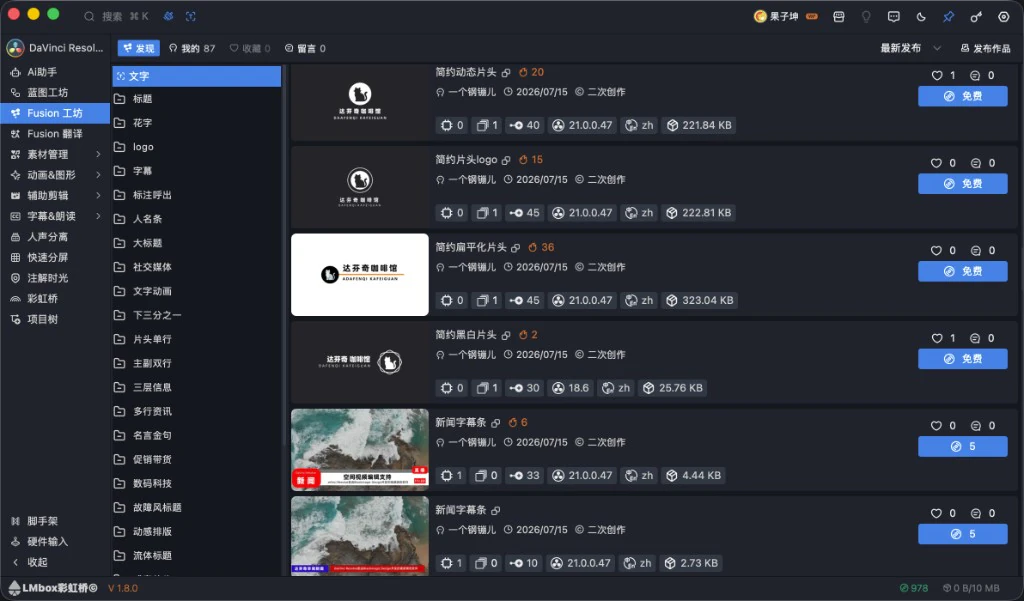
Figure: Discover → Text; the list shows cover, author, DaVinci Resolve version, size and free / cap downloads. The screenshot shows the Chinese interface.
Transitions
Optical, motion-graphics, light-leak, glitch and other transition works.
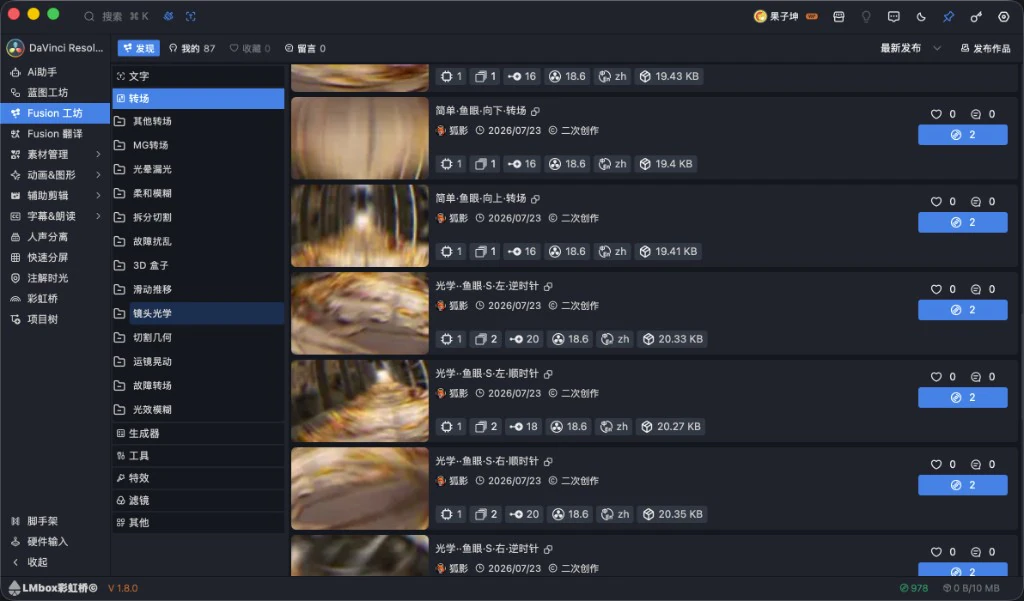
Figure: Transitions → sub-categories such as lens optics; sizes are mostly tens of KB. The screenshot shows the Chinese interface.
Generators
Backgrounds, light spots, noise, textures, timers, elements and other generators.
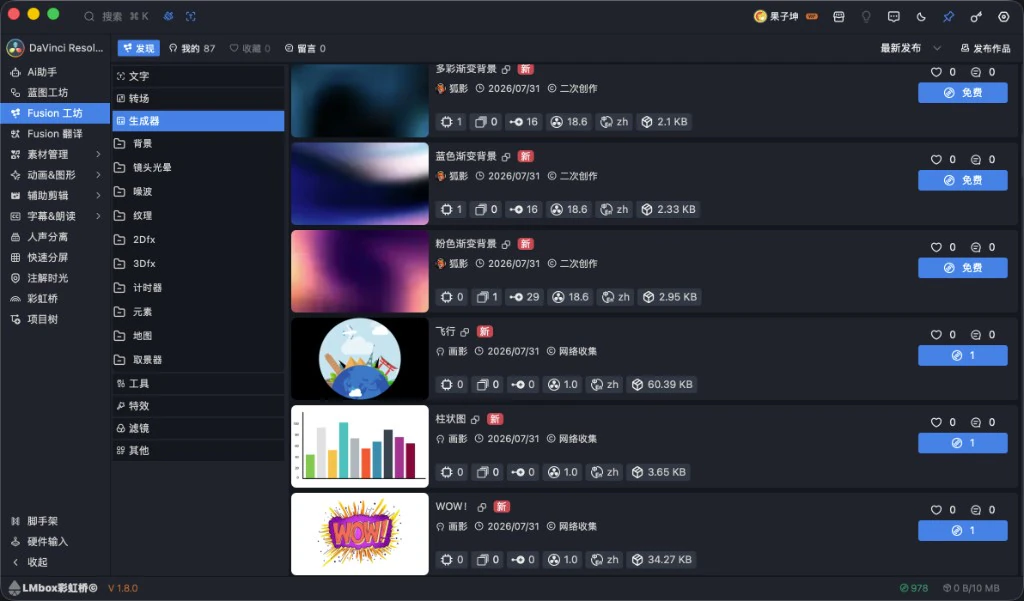
Figure: the generator list; some works are marked "New" and can be had free or for caps. The screenshot shows the Chinese interface.
Effects
Overlay, distortion, split-screen, mask, shake and other effect works; click one to open the preview video before deciding to import.
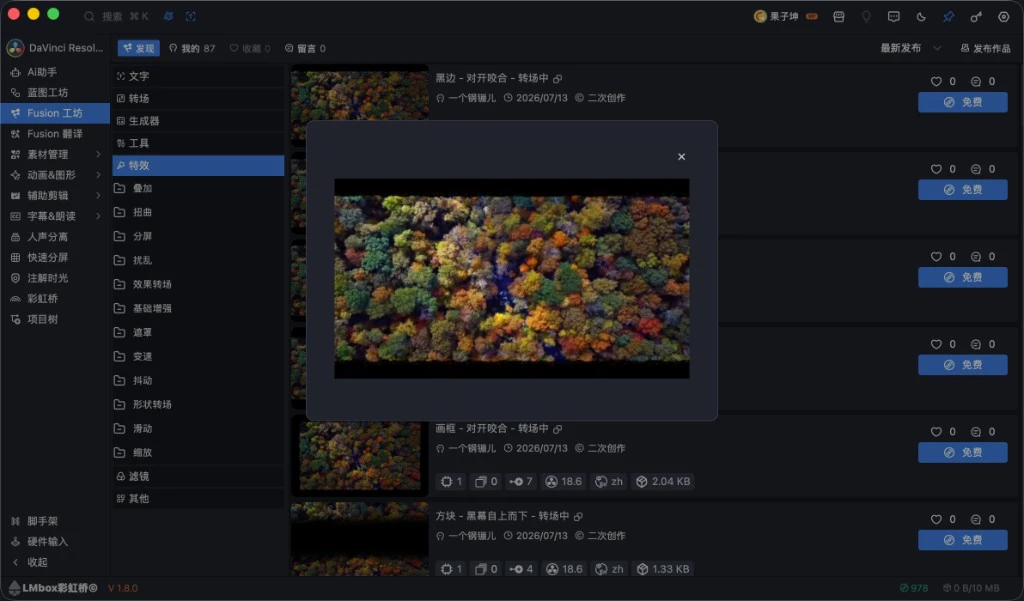
Figure: the effect list and preview pop-up (see the effect before importing). The screenshot shows the Chinese interface.
Other / class and test resources
The "Other" category can hold public-class examples and demo packs (such as public test resources) so you can practice along with a tutorial.
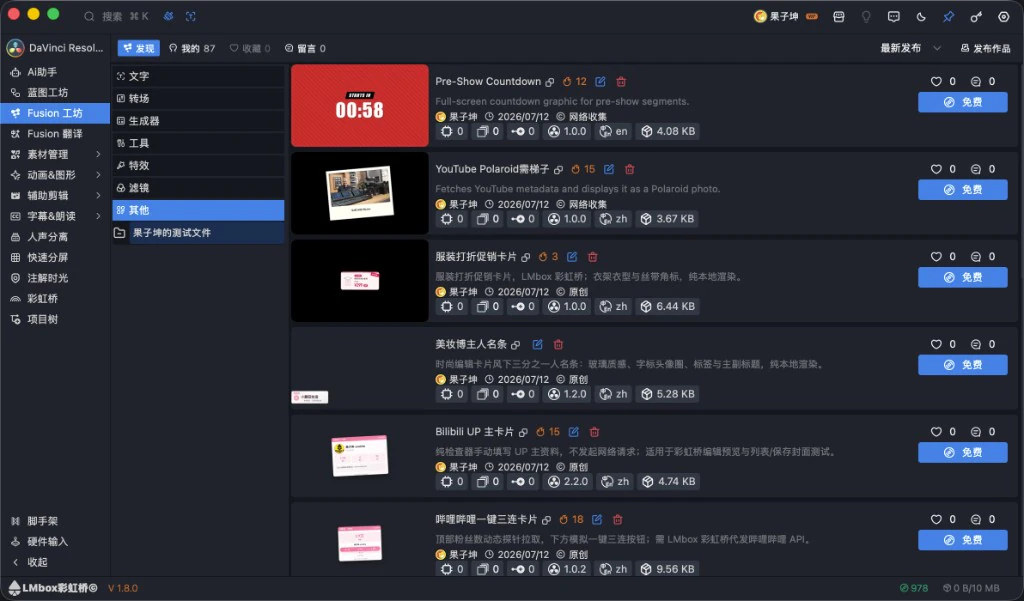
Figure: examples of class / demo resources in the Other category. The screenshot shows the Chinese interface.
Manage, preview and import
Using one work in Fusion Lab
- Open DaVinci Resolve, connect the LmBox extension, and open a project
- In Discover, pick a category and browse or search
- Hover over / click a cover to preview (a pop-up plays if there is a preview video)
- Click Free or the cap-price button and follow the prompt to import to the timeline (or download and use it; follow the screen)
.setting and side-car preview
Fusion Lab and local Fusion management mostly work with the .setting main file. To make effects easy to recognize in the list, it supports:
- Same-name side-car preview: a cover / preview in the same folder with the same main file name as the
.setting(such as a wide cover); the list can show it directly without opening the DaVinci Resolve node tree first - Take a preview from the timeline: when publishing or organizing, render a thumbnail / short preview video from the current timeline clip so others see the real effect in Discover first
When publishing you can also read a Fusion comp from the timeline, or paste copied nodes from the clipboard, then add the cover and preview and submit.
How it relates to "Fusion Presets"
| Fusion Lab | Fusion Presets (local) | |
|---|---|---|
| Focus | Community discovery, sharing, import on demand | Browsing, translating and importing preset files on this computer |
| Typical source | Online works, public-class resources | Local folders / official template packs / downloaded files |
Both serve DaVinci Resolve Fusion; Fusion Lab leans toward "community + on demand" and Fusion Presets toward "folder management".
Recommended workflow
Just want to use templates (downloader)
- Sign in to LmBox and open Fusion Lab from the sidebar
- Connect DaVinci Resolve → pick a category in Discover
- Watch the preview → get it free or with caps → import to the timeline to try it
- Save the ones you use often so you do not search repeatedly
Want to share and earn caps (uploader)
Fusion template creators are welcome to put works in Fusion Lab: ordinary users can publish and share too, so the library grows together. Contracted / eligible authors can also publish members-only works (set access to "Members only").
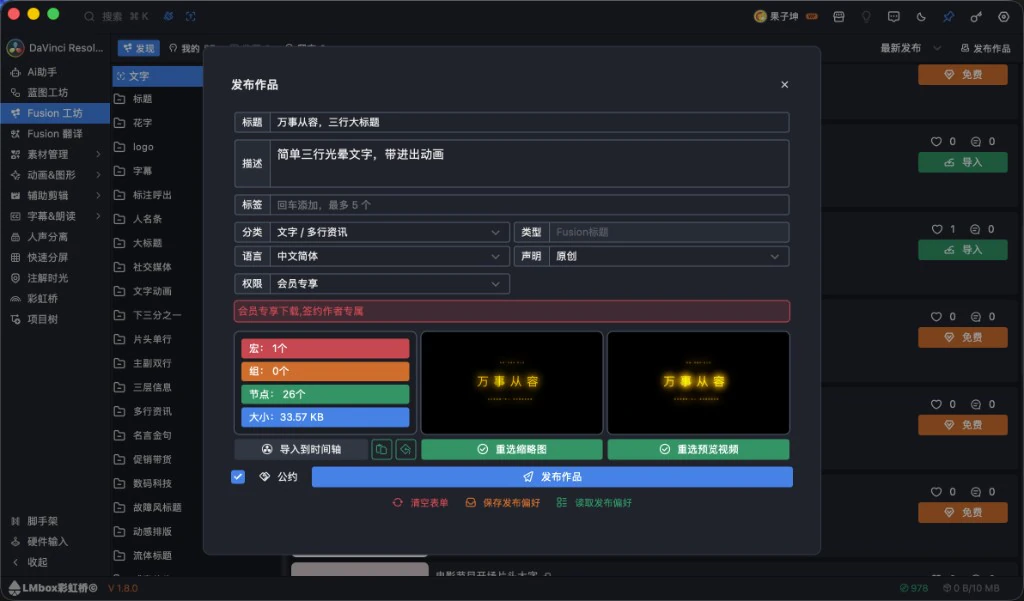
Figure: the publish form: title and description, category / type / declaration / access (including members-only), macro and node counts, thumbnail and preview video, then tick the guidelines and submit. The screenshot shows the Chinese interface.
- Click Publish, fill in the title and description, and optionally add tags (so others can find it)
- Choose the category, type and language, and honestly pick the declaration (original / derivative / collected from the web and so on)
- Paste nodes or get the comp from the timeline; if needed import to the timeline to self-check, then pick the thumbnail / preview video again
- Set the access: public, only me, or members-only (members-only is mostly for contracted authors; follow the screen prompt)
- Set the download cap price (or leave it free; free public works can receive a subsidy by the rules)
- Tick the guidelines and click Publish; after review it appears in Discover
You can Save publish defaults first so you fill in fewer repeated items next time.
Note
Follow the publishing guidelines and copyright declaration; infringing or violating content may be removed. Importing / taking previews needs the DaVinci Resolve extension online. If you run out of caps, top up in the app or earn them by uploading works under the rules.
FAQ
Q: What is Fusion Lab for?
A: To browse, download and upload DaVinci Resolve Fusion works inside LmBox and import them on demand, so you do not pile lots of .drfx into the DaVinci Resolve folder.
Q: Can it fully replace installing .drfx?
A: Most everyday text / transition / generator / effect works can be imported on demand; a few official or special packs may still use traditional installation. It depends on your actual project needs.
Q: What does "no disk footprint" mean?
A: Keeping as few templates as possible resident in the DaVinci Resolve folder; for some text and generator cases it can lower local usage further. It does not mean the computer writes no files at all.
Q: Who can publish? Can I publish members-only works?
A: Any signed-in user can share. Access can be public, only me and so on; members-only is for contracted authors and similar partners (follow the app prompt), so template creators can put members-oriented works in Fusion Lab.
Q: What are caps?
A: The settlement unit in Fusion Lab: downloading paid works spends them, and uploading and sharing can earn or share them by the rules. When your balance is short, follow the app prompt to top up or earn caps by uploading.
Q: The preview is blurry or missing?
A: Check whether the author uploaded a preview video; a local .setting can have a side-car cover. When publishing you can render the preview again from the timeline.
Q: How is it different from motion graphics (OGraf / Lottie)?
A: Fusion Lab is built around the Fusion node / .setting ecosystem; OGraf / Lottie go through Motion graphics (OGraf / Lottie). Some Fusion Lab entries may also carry graphics formats, and the app routes them by type on import.
Further reading
- Lab features overview
- Fusion Presets: manage, translate and import local
.settingfiles - Motion graphics (OGraf / Lottie): OGraf / Lottie library management
- Blueprint lab: chain Lab abilities with nodes
- LmBox desktop install
- Desktop release notes (Chinese only for now)
- Blog: Fusion Lab (public-class write-up; Chinese only for now)
- Public class · Bilibili
Release notes
Public classThe desktop video tutorial is now BV13Tbx6vEoB; the illustrated write-up is on the Chinese blog.2.4.1Fixed blurry covers uploaded to Fusion Lab; large timeline stills are now used when registering.2.1.3When publishing, after getting the video preview from the timeline, DaVinci Resolve returns to the page it was on before instead of staying on Deliver.1.9.3When DaVinci Resolve captures preview stills, the Color page no longer jumps; other pages return to the original page after capture.1.0.0Publishing is now a pop-up, so you can upload inside Presets and the lab without leaving the current page.1.0.0Fixed importing a preset from Fusion Lab into DaVinci Resolve where the clip had already landed on the timeline but still reported an import failure.0.2.1After downloading an item, one-click import into DaVinci Resolve puts it into the matching template folder by type, such as title, effect or transition.0.2.1Fusion Presets: right-click can upload a local template to the Fusion Lab publish page and place it on the editing timeline automatically so you can make a preview and cover.0.2.1Fixed items that could not be imported to the DaVinci Resolve editing timeline after download, or whose nodes were unusable after import.0.2.1Fixed the DaVinci Resolve template list showing only a string of numbers instead of the registered Fusion Lab name after import.0.2.1Fixed a wrong "upgrade needed" prompt when deleting your own work in "My Studio" of Fusion Lab, or the card staying in the list after a successful delete, with an error on repeated clicks.0.2.1Fixed the publish form being blank after clicking edit in "My Studio" of Fusion Lab, with the original work's info missing.0.2.1Import now brings the cover thumbnail along where possible; with "Clean up after import" off, the DaVinci Resolve Fusion template list shows the same preview as Fusion Lab.0.2.1"Clean up after import" and "Replace fonts on import" in the top bar ofFusion Presetsand Fusion Lab are on by default; templates with text use a common local font on import, and the original files in the library are not touched.