
Fusion Presets


When DaVinci Resolve ships with many Fusion templates and they are all installed into the app folder (on Windows often on the C drive), the lists get heavier and you can see slow starts and sticky clicks. "Fusion Presets" in LmBox mounts the official packs or your local .setting files in the desktop app: browse by folder, preview, and import to the timeline only when you need them, so the whole library does not have to sit in the DaVinci Resolve install folder. The sidebar icon is .
Video tutorial
Public class demo: Fusion Presets (do not stuff DRFX into the system drive, import on demand, save translations as copies). Open on Bilibili
What you will learn
- Why official / bundled templates can slow DaVinci Resolve down, and how this page eases it
- How to add folders / extension packs and browse official and your own template libraries
- How to tidy several
.drfxbundled templates with the Skill + an agent and mount them here - Right-click: copy code, get cover / preview, translate, workshop upload and more
- The translation drawer: translate controls / text, then save a copy or import
- How this differs from Fusion Lab
Guide
This is the main Lab guide. Community discovery and cap downloads are in Fusion Lab (see "Fusion Lab" in the sidebar of the app).
What it solves
| Pain point | What this page does |
|---|---|
| Bundled / official templates must be installed in the DaVinci Resolve folder, often on the system drive (such as C) | Keep templates in a folder on any drive and mount them in LmBox with Add folder or extension pack |
| The more you install, the slower DaVinci Resolve starts and the lists of effects / titles lag | Import on demand: browse .setting files in LmBox and write them to the current project only when used |
| Official packs are hard to browse and localize | Browse official template packs as a tree; right-click Translate template and save a translated copy |
Bought .drfx bundled templates are nested and scattered, hard to mount | Use the Skill below so an agent unpacks and merges them into Edit/, then add that folder |
Product note
DaVinci Resolve may still ship some defaults. What this page solves is that extra / whole-pack templates do not all have to go into the install folder. For community downloads on demand, see Fusion Lab. Both together reduce folder bloat.
How it differs from Fusion Lab
| Fusion Presets (this page) | Fusion Lab | |
|---|---|---|
| Focus | Local folder management, preview, translation, import | Community discovery, download on demand, publishing |
| Typical material | Official template packs, folders shared by friends, local .setting files | Online works |
| Upload | Right-click Upload to workshop opens the publish page | Publish work with the full form |
Both serve DaVinci Resolve Fusion. For managing your own library use Presets; for browsing the community use the Lab.
The desktop screen
Open from the sidebar. On the left is the folder tree and in the middle a grid of .setting thumbnails; the bottom bar sets the preview speed. Click Add folder or extension pack to mount a local folder.
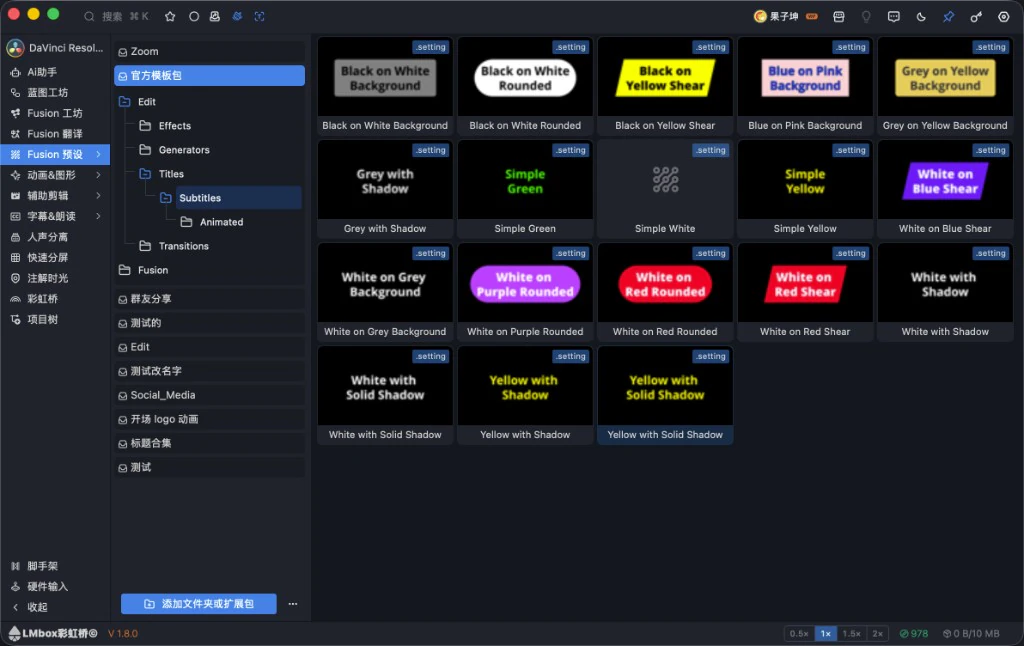
Figure: the "official template pack" is added, showing Edit → Titles → Subtitles; the card badge is .setting. The screenshot shows the Chinese interface.
Screen areas
| Area | What it does |
|---|---|
| Folder tree on the left | Official templates, your own categories, folders shared by friends; expands like DaVinci Resolve's own folders |
| Template grid in the middle | Thumbnail + file name; hover to preview (fuller with a side-car preview) |
| Add folder or extension pack | Mount a local folder or an extension pack |
| Speed at the bottom | Controls the hover preview playback speed |
Note
Before importing, connect the DaVinci Resolve LmBox connection and open a project. After a transition / effect is imported, you may need to apply it from the DaVinci Resolve transition library or Effects panel (follow the app's hint). For one mounted template pack, first right-click Expand; for many .drfx, hand them to the Skill below so an agent tidies them in one go before mounting.
.drfx flatten Skill (download)
Many third-party templates are .drfx packs: unpacked, they often have a vendor layer in between, or .setting files scattered about, which makes them awkward to mount as a whole library in Fusion Presets.
We provide a Skill (not a plug-in for one particular assistant). Give it to any agent that supports Skills, such as Cursor, Claude or another assistant that can load a Skill, and tell it the source folder and where to output. The agent follows the Skill to unpack, flatten and merge. The result is a unified Edit/ folder tree; then click Add folder or extension pack on this page and import on demand.
Download: davinci-drfx-flatten.zip
Benefits
- Saves manual work: no need to dig through layers of folders and line up scattered files
- One library: several
.drfxcan merge into one category tree, easy to browse in Fusion Presets - Less system drive use: tidy them to any drive and mount in LmBox, instead of putting whole packs in the DaVinci Resolve install folder
- Not tied to one assistant: the same Skill works with other agents
How an agent uses it
- Download and unzip, then load / enable the Skill the way your assistant does it (the entry differs by product; follow that assistant's notes)
- In the chat, say which
.drfxfiles (or their folder) and where you want the output - Let the agent process it with the Skill; when done, add the output folder in LmBox Fusion Presets
Details and conventions are in the Skill notes inside the zip. Hand them to the agent and you do not need to remember any commands.
Product note
The in-app right-click "Expand" suits one pack; for bulk tidying and flattening vendor folders, use this Skill first.
Right-click menu
Right-click a template card:
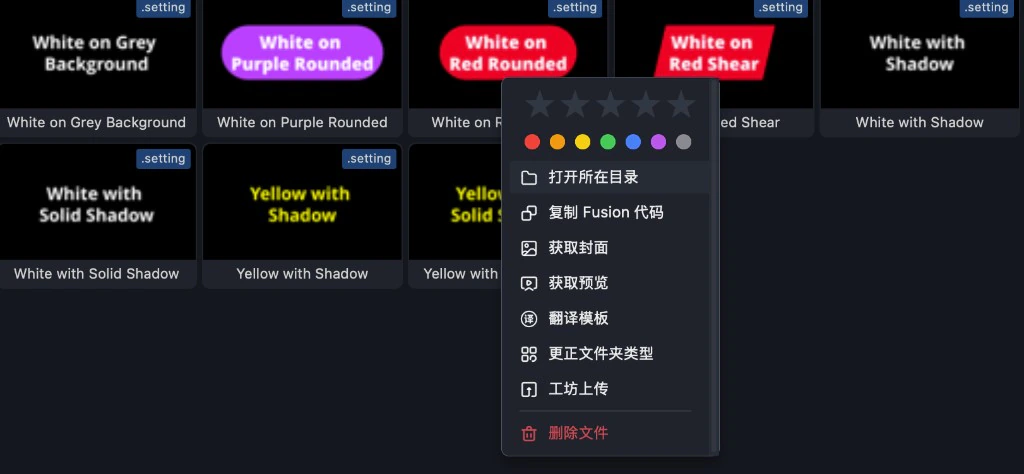
Figure: stars, color label and show in folder, copy code, get cover / preview, translate, correct type, workshop upload, delete. The screenshot shows the Chinese interface.
| Icon | Menu item | What it does |
|---|---|---|
| — | Stars / Color label | Mark favorite templates for filtering |
| Show in folder | Opens the folder of the file in the system | |
| Copy Fusion code | Copies the node text to the clipboard | |
| Get cover | Makes a side-car cover in the same folder so the list is easier to read | |
| Get preview | Makes a side-car preview video in the same folder (the local transcoding tool must be ready) | |
| Translate template | Opens the translation drawer on the right | |
| Correct folder type | Say whether the folder holds titles / generators / effects / transitions, so import goes to the right place | |
| Upload to workshop | Opens the publish page to share a local template in Fusion Lab | |
| Delete file | Permanently deletes the file and its side-car cover / preview in the same folder |
If the item is a template pack, the menu asks you to Expand first. Only after expanding can you preview, translate and import it like an ordinary template.
Translation drawer
After you right-click Translate template, Translation options open on the right. Tick Controls and / or Text, translate with AI or the cloud (follow the screen), then check the list of translations. The route and language you pick are remembered for next time.
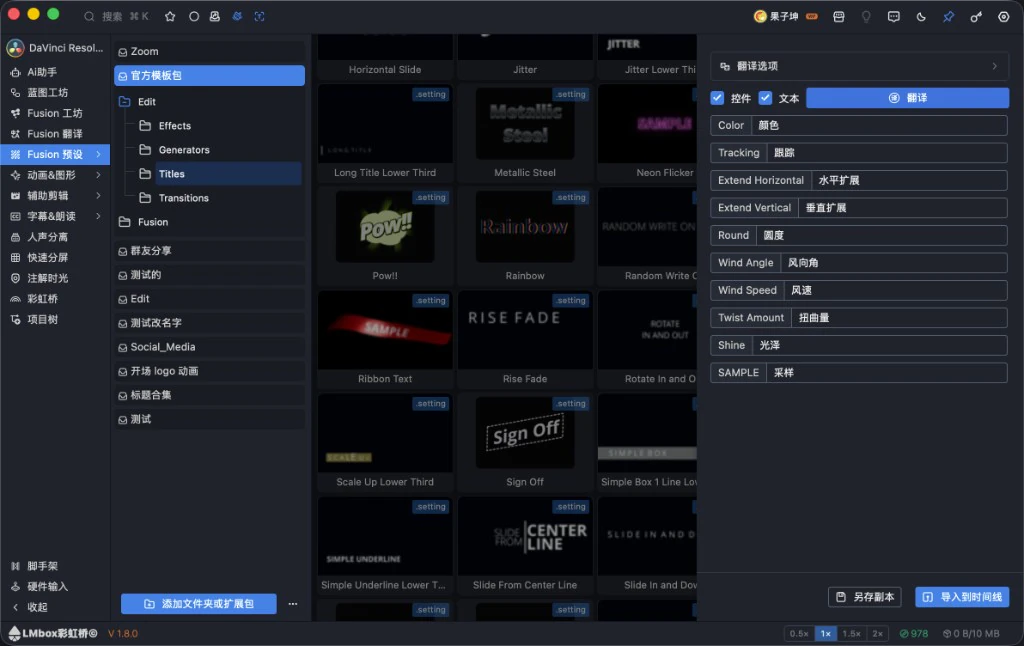
Figure: English control names next to the translations; at the bottom you can save a copy or import to the timeline. The screenshot shows the Chinese interface.
| Action | What it does |
|---|---|
| Controls / Text | Choose which kind of field to translate |
| Translate | Translates in bulk on the chosen route; you can still edit by hand |
| Save as copy | Saves as originalname-translated_n.setting in the same folder and does not overwrite the original |
| Import to timeline | Imports the current translation into DaVinci Resolve (the extension must be connected) |
Product note
Saving a copy is good for keeping a translated inspector version while the original English official template stays. Cloud translation may use credits / need sign-in; follow the app's hint.
Recommended flow
Manage official or local templates
- Open the LmBox desktop app and go to Fusion Presets in the sidebar
- If you have many
.drfxfiles, first let an agent tidy them intoEdit/with the .drfx flatten Skill - Add folder or extension pack (the official template folder, or the result of the previous step)
- Go into categories such as Titles / Transitions in the tree and browse
.settingfiles - If needed, right-click Get cover / Get preview so the list is easier to recognize
- Connect DaVinci Resolve → select a template and import to the timeline (or translate first, then import)
Use after translating, or share again
- Right-click Translate template → tick controls / text → Translate → proofread
- Save as copy to keep the translated version, or Import to timeline directly
- To list it in the community: right-click Upload to workshop, add the preview and permissions on the publish page, then submit
FAQ
Q: What is Fusion Presets for?
A: A local Fusion .setting template library: browse, preview, translate, import into DaVinci Resolve, and upload to the workshop. It eases the slowdown from piling bundled / official templates into the install folder.
Q: Can it manage the official DaVinci Resolve templates, and can I avoid the C drive?
A: Yes. Put the official template packs in a folder on any drive and mount them with "Add folder or extension pack" to browse. Import when you use one, so the whole pack does not have to stay in the DaVinci Resolve install folder (on Windows often on C).
Q: How is it different from installing many .drfx files?
A: Here you look at light .setting files by folder and import when needed, so many packs do not stay in the DaVinci Resolve folder. For community downloads on demand, see Fusion Lab.
Q: How do I mount a pile of .drfx in Fusion Presets?
A: Download the Skill zip on this page, give it to any agent that supports Skills (such as Cursor or Claude), tell it the source folder and the output location, and after it tidies them add the folder on this page.
Q: How is "Expand" in the app different from the Skill?
A: Right-click Expand suits one pack already mounted. The Skill suits bulk tidying, flattening and merging into one library, with an agent doing the work.
Q: Will translating break the original file?
A: By default it saves a copy and does not overwrite the original. Import uses the cache / copy for the current translation; follow the on-screen actions.
Q: Getting a cover / preview failed?
A: Check that the folder is writable and the local transcoding tool is set up in Settings. Some items must be renderable on the DaVinci Resolve side first.
Q: How does it relate to "Name Translate"?
A: The drawer here focuses on controls / text of a single preset. Name Translate in the sidebar can switch to "Fusion comps" in DaVinci Resolve, for scripts and node text; see Name Translate for details.
Further reading
- Lab features overview
- Name Translate: UI names and Fusion comp text
- Fusion Lab: community discovery, publishing and caps
- Motion graphics (OGraf / Lottie)
- Install the desktop app
- Public class · Bilibili
Release notes
Public classThe desktop video tutorial is now BV1KoYN6LEJX.2.4.1Translate template remembers the route and language you chose last time and reuses them on the next open.2.4.1Fixed blurry covers on workshop upload. A large timeline frame is now used when registering.2.2.0Fixed the list scrolling back to the top after a delete or saving a copy and breaking aggregated browsing. It now stays where it was.1.6.0Fixed messy category folders and missing effect library covers after installing from the workshop into DaVinci Resolve. Files now land by the rules and covers show normally.1.2.3You can label a local template folder with a type (titles / generators / effects / transitions), chosen once per folder; right-click can "Correct folder type" at any time.1.2.3When importing a local bundle, the original folder structure is kept in DaVinci Resolve, including the subfolders inside the bundle.1.2.3Fixed wrong types, flattened subfolders, or duplicate files in the same folder when importing a local bundle.1.2.3Fixed missing companion media or wrong type detection when importing a translated copy.1.2.2Edit / translate Save as copy now usebasename-edited_nandbasename-translated_n(for Motion graphics, Fusion Presets and Motion graphics (MOGRT); the original is never overwritten).1.2.1After translating,Motion graphics (MOGRT)can save a copy in the same folder, and the original template is not overwritten.0.2.1You can add local folders on the desktop app to browse and manage DaVinci Resolve Fusion templates.0.2.1Right-click can upload a local template to theFusion Labpublish page and place it on the editing timeline automatically so you can make a preview and cover.0.2.1Right-click can open the translation drawer to translate template text and control names online, and import a translated copy to the timeline from the drawer.0.2.1Motion graphics (MOGRT), Fusion Presets and Name Translate (formerly Fusion Translate): when translating you can tick "Text" or "Controls"; both are listed and translated by default.0.2.1Local template right-click can open the folder, get covers and previews, translate, upload to the workshop or expand a bundle. Common items have icons, and the list shows new covers and previews at once.0.2.1WithFusion Lab, the top bar "Clean up after import" and "Replace fonts on import" are on by default. Templates with text use a common local font on import, and the original files in the library are not touched.