
Motion graphics (MOGRT)


"Motion graphics (MOGRT)" in LmBox (the menu name in the app is "Motion graphics"; this page adds the brackets to tell it apart from the OGraf / Lottie page) browses the Premiere Essential Graphics (.mogrt) on your computer and in extension packs: grid preview, double-click or drag onto the timeline; switch between landscape and portrait, include or skip the built-in sound effects, and batch-activate commercial templates. Right-click opens the Translate template drawer to translate controls / text, then save a copy or import. The sidebar icon is . Bundled collections such as variety-show fancy text and annotation packs can be mounted on this page to preview and use.
Video tutorial
Public class demo: Motion graphics (MOGRT), covering template translation, importing into Premiere and merging into After Effects. Open on Bilibili
The earlier demo of the extension panel is still worth a look: Open on Bilibili
What you will learn
- Bundled collections: how the 1200+ variety-show fancy text and 600+ annotation packs are mounted on this page
- Add folders: with the button, or drag them onto the sidebar from Finder / File Explorer
- Top bar: built-in sound effects, landscape / portrait, batch activate
- Right-click: stars, color labels, show in folder, Translate template
- The translation drawer: tick controls / text → translate → save as copy / import to the timeline
Guide
This is the main Lab guide for the LmBox desktop app. The older Premiere extension panel and the extension pack toolbar have their own notes that are not yet available in English.
Feature overview
| Capability | What it does |
|---|---|
| Folders / extension packs | Mount a local directory or a commercial pack in the sidebar |
| Bundled collections | Such as 1200+ variety-show fancy text (with built-in sound effects) and 600+ annotation packs, which can be mounted when your account includes them |
| Grid preview | Thumbnails carry a .mogrt mark, and the preview scale is adjustable |
| Import to the timeline | Double-click / drag after connecting the Premiere (or AE) extension |
| Top bar switches | Built-in sound effects, landscape / portrait, batch activation of commercial templates |
| Translate template | Right-click to open the drawer, translate control names and text, then save or import |
Before you start
- Install and open the LmBox desktop app
- In the sidebar choose (the extension icon lights up when importing to the timeline); to merge into an AE project choose
- Premiere: open a sequence; the import point is the playhead
Bundled collections
When your account includes them, you can use the bundled collections related to Essential Graphics (they often show as banner collections in the sidebar). Once mounted on this page you can preview, search and import them into Premiere.

Figure: an overview of the collections, with categories such as fancy text, caption bars, MG transitions and annotations. The screenshot shows the Chinese interface.
1200+ variety-show fancy text (with sound effects)

Figure: the 1200+ variety-show fancy text collection; templates can import with built-in sound effects. The screenshot shows the Chinese interface.
.mogrt files for variety-show style fancy text, stickers and dialogue boxes. Before importing you can turn on Built-in sound effects in the top bar.
600+ annotation packs

Figure: 600+ annotation packs, with arrows, dimension lines and other annotation graphics. The screenshot shows the Chinese interface.
A collection of measuring, callout and annotation templates.
How to get them:
- Sign in to your account and make sure the collection is included in your account benefits
- Download or deploy the matching extension pack as described for your account
- Open , and use Add folder or extension pack to mount it (or drag it onto the sidebar)
- Open a collection category on the left and double-click to import; when a commercial template needs it, use Batch activate in the top bar
What is included depends on your account. You can also just add your own .mogrt folders on your computer.
Screen overview
Open from the sidebar. The left side holds the categories and the local folder tree, and the right side the template grid.
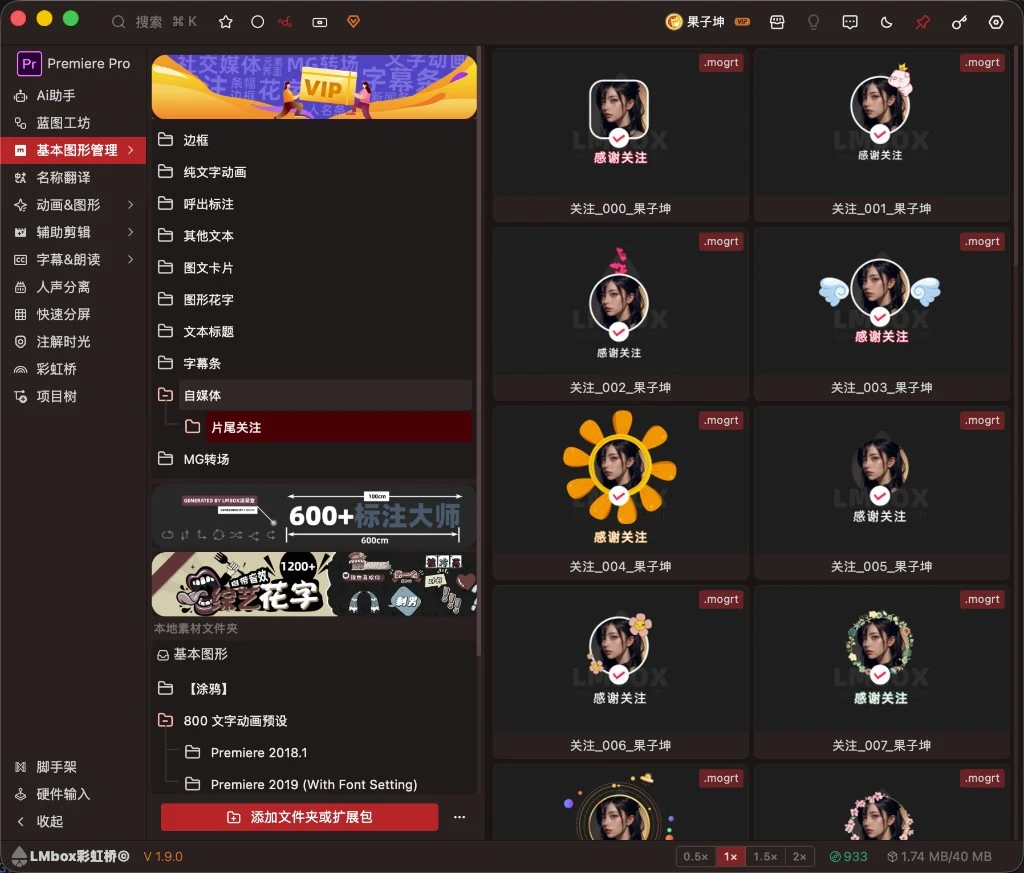
Figure: Motion graphics with extension pack categories, local folders, the .mogrt grid preview and "Add folder or extension pack". The screenshot shows the Chinese interface.
Screen areas
| Area | What it does |
|---|---|
| sidebar | Enter this page |
| Extension pack categories / local footage folders | Browse the mounted directory tree and collection banners |
| + Add folder or extension pack | Pick a local .mogrt directory or extension pack; you can also drag (see the next section) |
| Grid item | Preview + .mogrt mark + name |
| Bottom scale | 0.5x / 1x / 1.5x / 2x to change the thumbnail size |
| Top bar (after the extension connects) | Built-in sound effects, Landscape / portrait, Batch activate |
Add folders (drag or button)
The sidebar supports two ways to add:
- Click + Add folder or extension pack at the bottom and pick a directory or extension pack in the dialog
- Drag: drag a folder containing
.mogrt(several at once is fine) from Finder / File Explorer onto the sidebar area, and release when the dashed hint Drop here to add appears
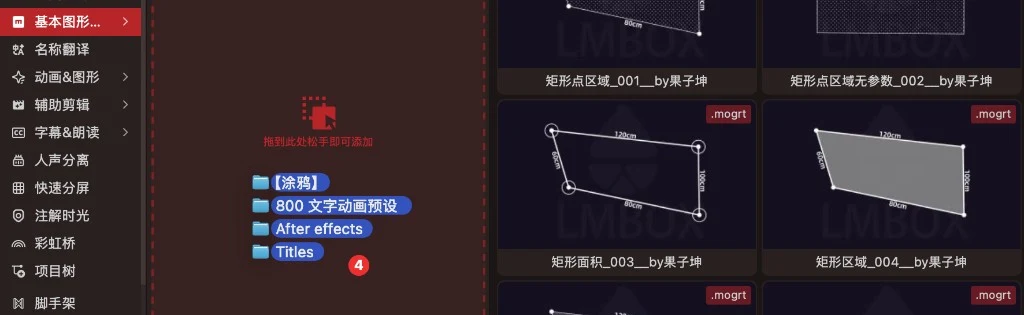
Figure: drag several Essential Graphics folders onto the dashed area of the sidebar and release to add them as local footage folders. The screenshot shows the Chinese interface.
After adding, the matching root appears on the left; open it to browse the previews in the grid on the right.
Steps
- Add folders: click Add folder or extension pack, or drag a folder onto the sidebar and release at the dashed hint (several at once is fine)
- Open a category / folder on the left and browse the previews on the right
- When needed, turn on Built-in sound effects in the top bar and switch Landscape / portrait
- With the playhead in place, double-click a template (or drag it in, as the screen supports) to import into Premiere
- If a commercial template says the source is unverified: click Batch activate in the top bar, which scans all sequence video tracks and writes the activation info
Right-click menu
Right-click a template in the grid:
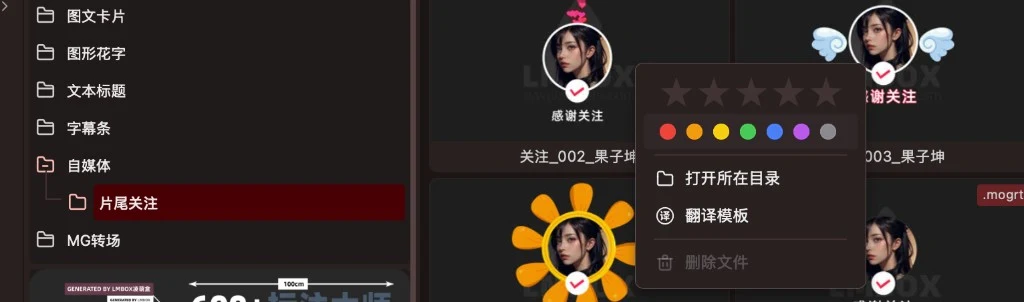
Figure: right-click with stars, color labels, show in folder, translate template and delete file. The screenshot shows the Chinese interface.
| Item | What it does |
|---|---|
| Stars | Rate this template so you can filter favorites |
| Color dots | Sort with color labels |
| Show in folder | Locates the .mogrt in the system file manager |
| Translate template | Opens the Translation options drawer on the right (see the next section) |
| Delete file | Deletes the template from disk (be careful) |
Translate template (translation drawer)
After you right-click Translate template, Translation options open on the right. They list the control names and text in the template that can be translated; translate in bulk or edit by hand, then Save as copy or Import to timeline. The original file is not overwritten by default. The route and language you pick are remembered for next time.
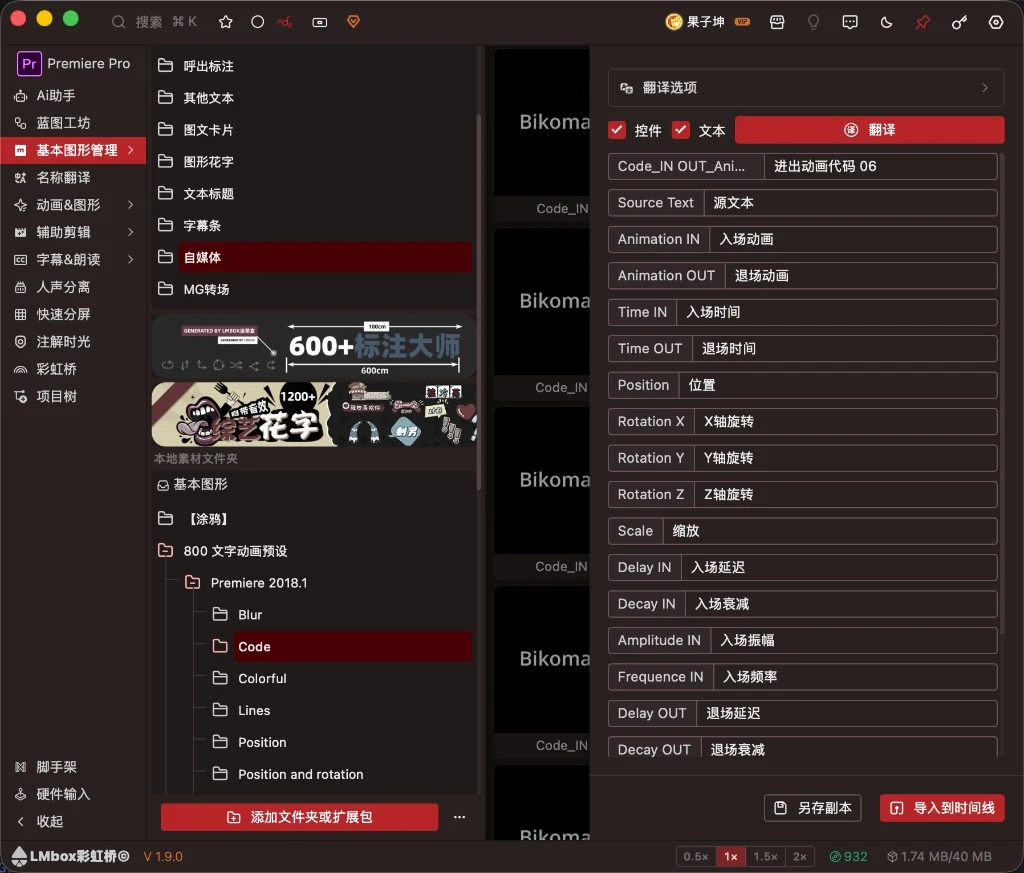
Figure: Translation options, with controls / text ticked, then save a copy or import to the timeline after filling in the translations. The screenshot shows the Chinese interface.
| Area | What it does |
|---|---|
| Controls / Text | Filter which types show up and take part in translation |
| Translate | Fills in translations in bulk on the chosen route (follow the screen when sign-in / credits are needed) |
| Source / Target columns | The left holds the original text in the template and the right can be edited by hand |
| Save as copy | Saves as basename-translated_n in the same folder and keeps the original template |
| Import to timeline | Builds a cached copy from the current translation and imports it into Premiere |
It works together with Name Translate: this page focuses on the controls and text inside a single mogrt template, while Name Translate focuses on host UI names and DaVinci Resolve Fusion compositions.
FAQ
Q: How do I use the bundled variety-show fancy text and annotation packs?
A: Once they are included in your account and the extension pack is deployed, use Add folder or extension pack in Motion graphics (MOGRT) to mount it, then open a collection on the left to preview and import. See "Bundled collections" above.
Q: How do I import a mogrt into the timeline in Premiere?
A: Open Motion graphics in the sidebar, pick a template and double-click it. Connect the LmBox extension and open a sequence first. For portrait or built-in sound effects, turn on the matching switch in the top bar first.
Q: What is the difference between translating and saving a copy?
A: Translating edits the translations in the drawer; Save as copy writes a new .mogrt and does not overwrite the original; Import to timeline uses the current translation to go straight into Premiere.
Q: How does it relate to the graphics in the older extension panel?
A: The desktop app is the main entry now. The older flow inside the extension panel is documented separately and is not yet available in English.
Q: A commercial template shows an unverified source?
A: After connecting Premiere, click Batch activate in the top bar, or select the template on the timeline and the extension will try to write the activation info automatically.
Further reading
- Lab features overview
- Name Translate
- Install the desktop app
- Public class · Motion graphics (MOGRT) · Bilibili
- Earlier extension demo · Bilibili
Release notes
2.4.1Translate template remembers the route and language you chose last time and reuses them on the next open.2.2.0Fixed the list scrolling back to the top after a delete or saving a copy and breaking aggregated browsing. It now stays where it was.Public classThe desktop video tutorial is now BV11Nuz6yE4B (translation / importing into Premiere / merging into AE); the earlier extension demo stays as a secondary link.2.0.0After translating and saving or importing, the text on the Premiere timeline shows in the translation.1.2.2Edit / translate Save as copy now usebasename-edited_nandbasename-translated_n(for Motion graphics (OGraf / Lottie), Fusion Presets and this page; the original is never overwritten).1.2.1Fusion Presetsand Essential Graphics can save a copy in the same folder after translating, and the original template is not overwritten.0.2.5Fixed a GIF preview with the same name as a template not showing in Motion graphics. It now appears on the list thumbnail normally.0.2.2When connected to After Effects, local templates can be merged into the current project; this is still being wired up for commercial extension packs.0.2.1When translating you can tick "Text" or "Controls"; both are listed and translated by default.0.1.9(Media lab) After importing Essential Graphics from a commercial extension pack in Premiere, the local activation steps finish automatically; the top bar can scan all sequences in the project and batch-activate.0.1.9With the Premiere editing extension connected, selecting a commercial Essential Graphics on the timeline automatically detects it and tries to write the activation info.0.1.9The top bar's "Keep built-in animation sound effects", "Landscape / portrait" and "Batch activate" are open to all signed-in users and are no longer limited by membership level.0.1.9Fixed Essential Graphics controls sometimes briefly showing old content after the activation info was written.0.1.9Batch activate goes through the clips on each sequence's video tracks by the agreed rules and tries to write them one by one.