
Motion graphics (OGraf / Lottie)


From DaVinci Resolve 21, two kinds of graphic animation are supported natively: OGraf suits editable fancy text, titles and data cards, and Lottie suits the motion assets you find online. "Motion graphics (OGraf / Lottie)" in LmBox (the menu name in the app is "Motion graphics"; this page adds the brackets to tell it apart from the MOGRT page) keeps these templates in one place on the desktop: pick a folder on the left, see thumbnails in the middle, open one to change the text, colors and duration, then send it to the current DaVinci Resolve project in one click (.ograf / .lottie). The sidebar icon is .
What you will learn
- How to add folders or extension packs and browse the
.ograf/.lottielibraries - Right-click menu: stars, color labels, edit, translate, cover / preview, workshop upload
- The edit drawer: change parameters, capture a cover, save a copy, import to the current project
- Blueprint lab "OGraf graphic generation → Import" to place a graphic from one sentence
- How to choose between OGraf and Lottie, and how they split work with Fusion
Guide
This is the main Lab guide.
When to use it
| Keyword / need | What to do on this page |
|---|---|
| DaVinci Resolve 21 OGraf, HTML text-and-graphic templates, editable cards | Open the .ograf library → Edit → Import to the current project |
Import Lottie into DaVinci Resolve, .lottie motion assets | Open a Lottie folder → Preview → Import (the target must be DaVinci Resolve or a host that supports Lottie) |
| Fancy text / number animation / data cards | Browse by folder, hover to preview, change the parameters, then place on the timeline |
| Managing a motion graphics library | Add local folders or extension packs, and tidy with stars and color labels |
| One-sentence OGraf, Blueprint lab nodes | Blueprint: OGraf graphic generation → Import OGraf graphic → Run |
The desktop screen
Open from the sidebar. On the left is the asset tree and in the middle a grid of thumbnails; the bottom bar sets the hover preview speed (such as 0.5x / 1x / 1.5x / 2x). Click "Add folder or extension pack" to mount a local folder or extension pack.
OGraf library (.ograf)
The card badge shows .ograf. Common categories are number animation, fancy text, schedule / promo cards and so on. Hover to preview inside the library, then edit or import into DaVinci Resolve.
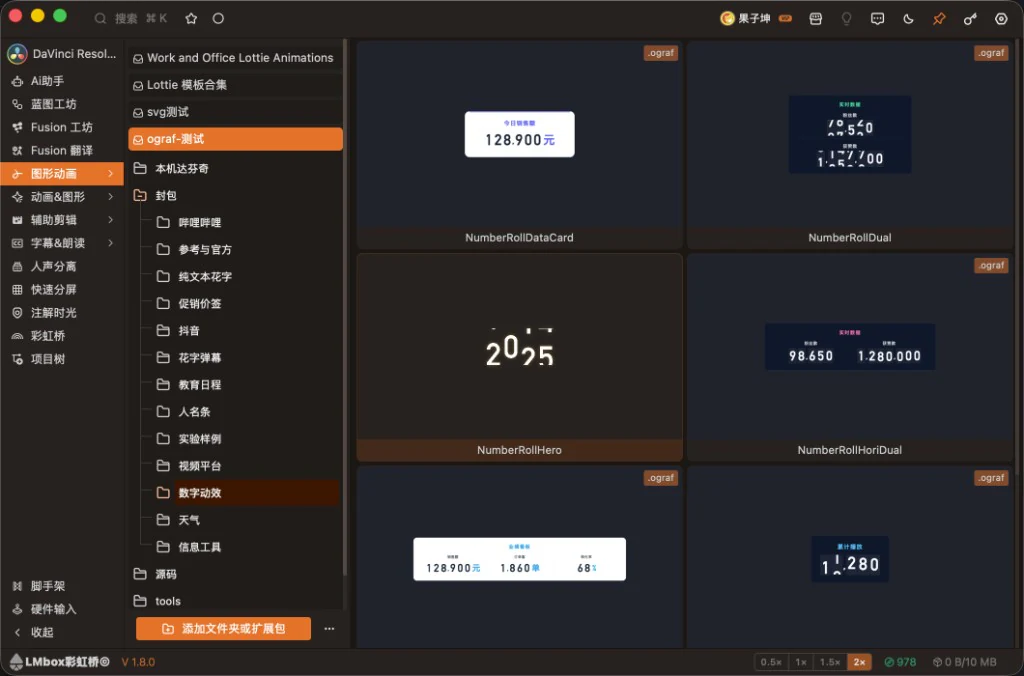
Figure: the OGraf library with the folder tree + a grid of .ograf thumbnails. The screenshot shows the Chinese interface.
Lottie library (.lottie)
The card badge shows .lottie. It suits the icon animations and decoration collections you find online. Preview and manage them together in LmBox, then import into the DaVinci Resolve timeline.
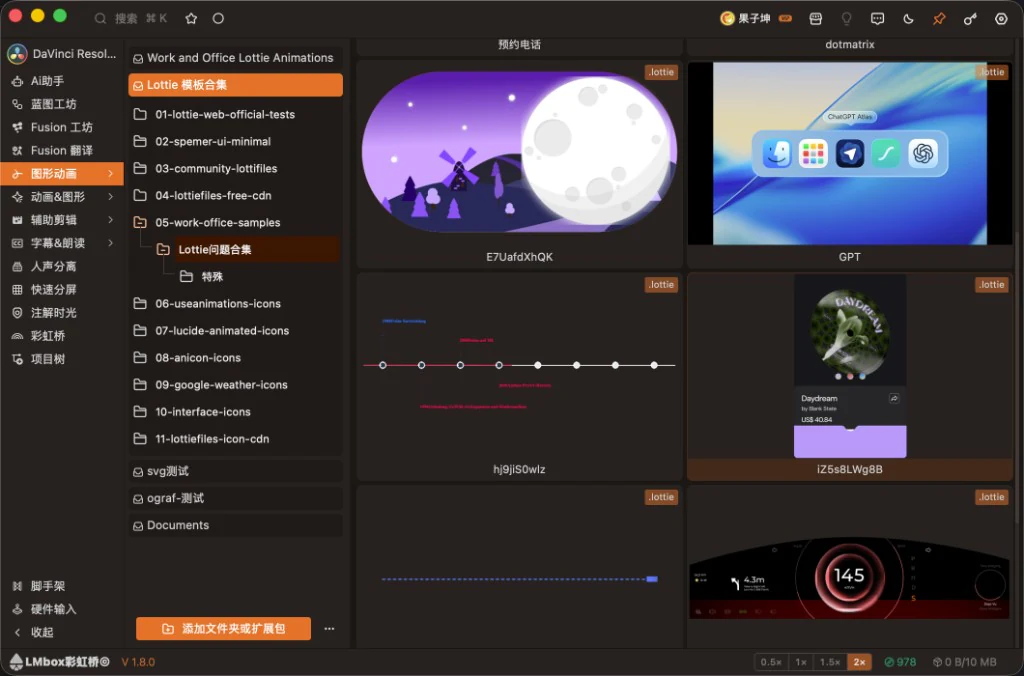
Figure: a Lottie template collection with the folder tree + a grid of .lottie thumbnails. The screenshot shows the Chinese interface.
Screen areas
| Area | What it does |
|---|---|
| Folder tree on the left | Browse the folders / extension packs you added; grouped by theme (such as packed, collections) |
| Asset grid in the middle | Thumbnail + format badge; hover to preview the animation |
| Preview speed at the bottom | Controls the hover preview playback speed |
| Add folder or extension pack | Mount a local asset root or an extension pack |
Note
Import OGraf in DaVinci Resolve (the target at the top must be the DaVinci Resolve LmBox connection, kept online). For Lottie, the target must be DaVinci Resolve or After Effects (follow the app's hint). Unpacked source may not preview fully in the list, so use "Pack as template" first.
Right-click menu
Right-click an asset card to tidy and handle a single animation:
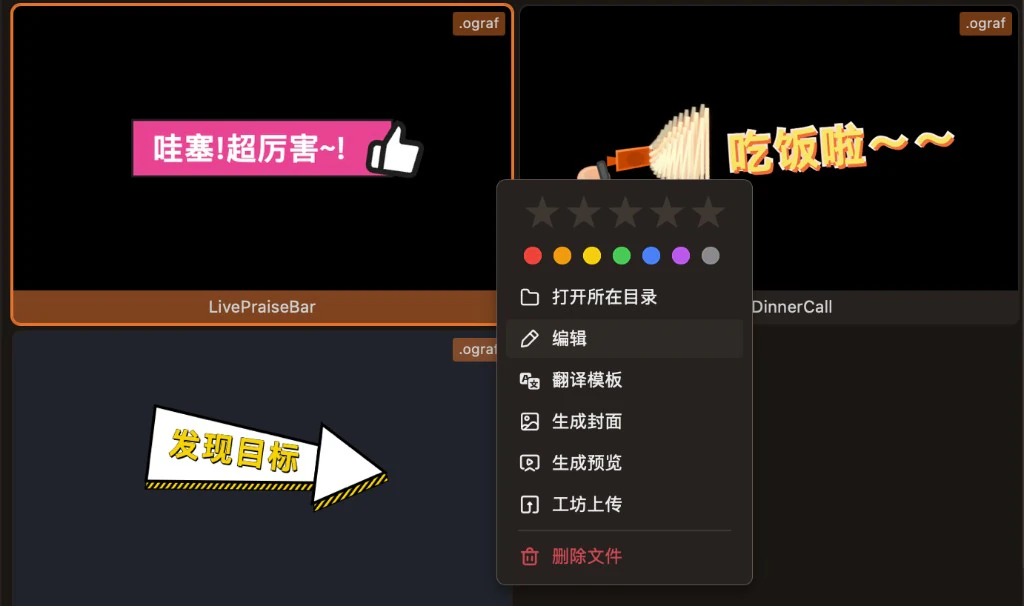
Figure: stars, color label, and edit / translate / cover / preview / workshop upload / delete. The screenshot shows the Chinese interface.
| Icon | Menu item | What it does |
|---|---|---|
| — | Stars | Rate the asset to filter your favorites |
| — | Color label | Sort with color labels |
| Show in folder | Opens the folder of the file in the system | |
| Edit | Opens the edit drawer on the right to change parameters and preview | |
| Translate template | Translates the text inside the template (for OGraf); the route and language are remembered | |
| Pack as template | Packs loose source into .ograf (shows when it applies) | |
| Make cover | Makes a side-car cover file in the same folder | |
| Make preview | Makes a preview video in the same folder (the local transcoding tool must be ready) | |
| Upload to workshop | Opens the publish page to upload to the workshop (OGraf must be packed as .ograf) | |
| Delete file | Permanently deletes the file and its side-car cover / preview in the same folder |
Edit drawer
Right-click Edit, or select an asset, to open the drawer on the right: a live preview on top, and below it the parameters the template exposes (such as animation duration, fancy text, font, alignment, text / fill / stroke colors). You can drag the handle in the preview area to help import into DaVinci Resolve.
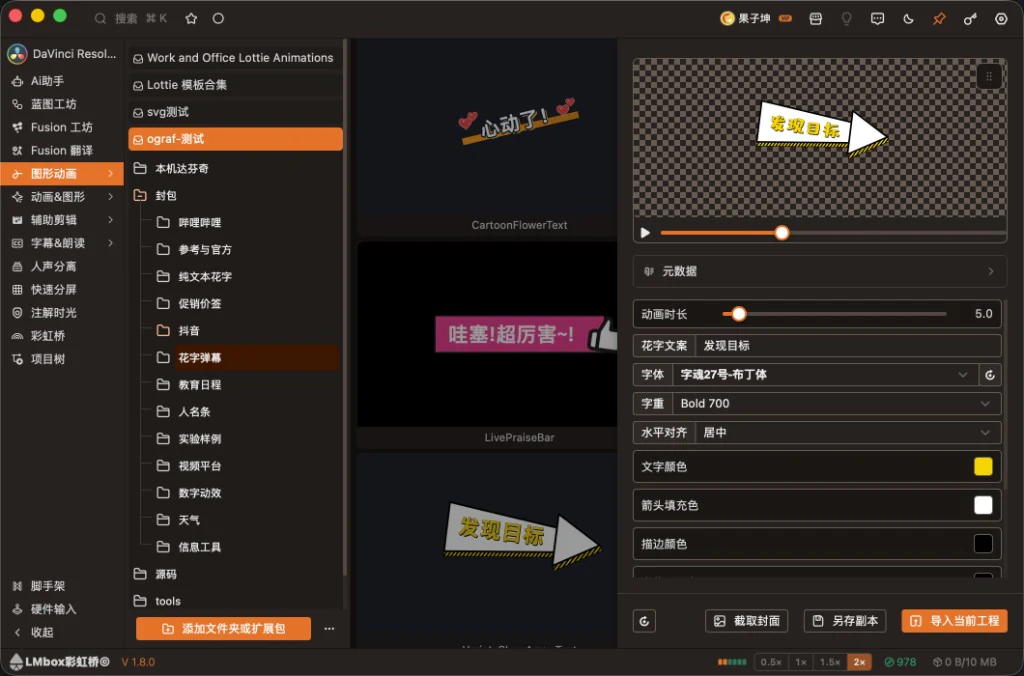
Figure: change the fancy text, font and colors, preview, then import to the current project. The screenshot shows the Chinese interface.
Actions at the bottom of the drawer
| Icon | Name | What it does |
|---|---|---|
| Reset | Restores the current edit parameters | |
| Capture cover | Captures a cover from the current preview picture | |
| Save as copy | Saves a new file without overwriting the original template | |
| Import to current project | Imports into the DaVinci Resolve project / timeline with the current parameters |
Some templates also show metadata (name, description, author, duration, canvas and so on) so you can check the version.
Recommended flow
1. Mount a library
- Open the LmBox desktop app and go to Motion graphics in the sidebar
- Click Add folder or extension pack and pick your local OGraf / Lottie folder
- Go into the category in the folder tree and browse the thumbnails in the grid
2. Preview and tidy
- Hover over a card to preview; switch the speed in the bottom bar
- Right-click to add stars and color labels, or open the folder to check the source file
- If you want list covers / preview clips: right-click Make cover / Make preview (do this when DaVinci Resolve is connected and the local transcoding conditions are met)
3. Change parameters and import into DaVinci Resolve
- Check that the target at the top is the DaVinci Resolve LmBox connection, the extension is connected and a project is open
- Right-click Edit → change text, colors, duration and so on
- Click Import to current project, or drag the handle in the preview area to import
- To keep your changes, use Save as copy; for a cover, use Capture cover
4. Packing and workshop (optional)
- Loose OGraf source: right-click Pack as template to get
.ograf - A packed template: right-click Upload to workshop, confirm on the publish page and submit
Make OGraf from one sentence with Blueprint lab
Besides managing ready-made assets, you can use Blueprint lab in the sidebar to make OGraf from one sentence with nodes, then import into DaVinci Resolve. The result can also go into this "Motion graphics (OGraf / Lottie)" library to keep tuning and tidying. For the blueprint overview, node categories and other starting examples, see Blueprint lab.
The typical wiring is OGraf graphic generation → Import OGraf graphic, then click Run in the top bar.
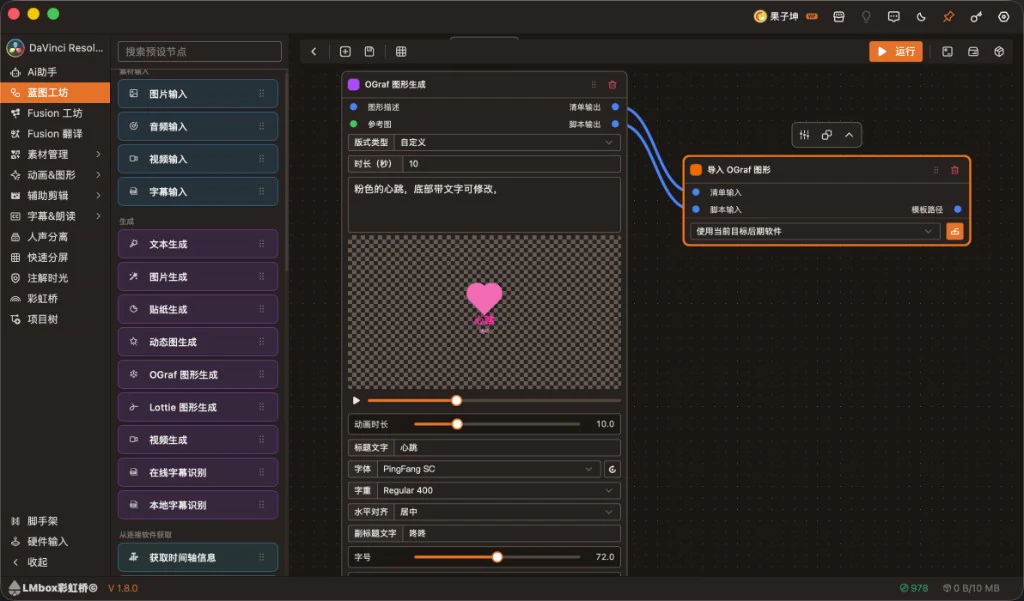
Figure: pick "OGraf graphic generation" in the node library on the left, connect it to "Import OGraf graphic", fill in the graphic prompt and run. The screenshot shows the Chinese interface.
| Node | What it does |
|---|---|
| OGraf graphic generation | The Graphic prompt input takes natural language (such as "a pink heartbeat, with editable text at the bottom"); an optional reference image; preview inside the node and adjust layout, duration, title / subtitle, fonts and more |
| Import OGraf graphic | Takes the list and script outputs; set the target to Use the current target editing app (the top must show DaVinci Resolve, connected) |
Short steps
- Open Blueprint lab and drag OGraf graphic generation and Import OGraf graphic from the "Generate" nodes
- Connect the list / script outputs of the generation node to the matching inputs of the import node
- Fill in the Graphic prompt on the generation node, adjust duration and editable text if needed, and check the preview
- Set the import node to the current target editing app → click Run
- For long-term reuse, add the result to a folder in the "Motion graphics" tree and keep managing it on this page
Product note
Blueprints do "generate + place on the timeline"; this "Motion graphics" page does "asset library management". Use Fusion for complex effects. Do not replace a whole composition with one-sentence generation.
OGraf, Lottie or Fusion?
| Aspect | OGraf (.ograf) | Lottie (.lottie) | Fusion |
|---|---|---|---|
| Role | HTML text-and-graphic / editable templates | Animation assets (often from online collections) | Node-based compositing and effects |
| Change text / colors | Usually friendly (inspector / this page's drawer) | Text is often hard to change (usually rasterized) | Flexible but a steeper learning curve |
| Typical use | Titles, fancy text, data cards, schedules, online cards | Icon animations, decoration animations | Keying, particles, transitions, complex motion graphics |
| What this page does | Library management, edit, pack, import into DaVinci Resolve | Library management, preview, edit (depends on the template), import | Not on this page; see the Fusion Lab items |
For the concepts and the online card demo, see the public class write-up; for daily library management and placing on the timeline, follow this page.
FAQ
Q: What is Motion graphics (OGraf / Lottie) in LmBox?
A: The OGraf / Lottie asset management page in the desktop Lab: browse, preview, change parameters, tidy, and import into the current DaVinci Resolve project.
Q: How do I use OGraf templates in DaVinci Resolve 21?
A: Manage .ograf on this page → Edit to change parameters → set the target at the top to DaVinci Resolve and connect → Import to current project. You can keep changing parameters in the inspector on the timeline.
Q: How do I import Lottie into DaVinci Resolve?
A: Open the .lottie library in Motion graphics, preview to confirm, then import. The target must stay DaVinci Resolve (or a host the app says is supported). For lots of text changes, prefer OGraf.
Q: What is the difference between .ograf and unpacked source?
A: List previews and workshop upload usually need a packed .ograf. Loose source can be turned into one with "Pack as template" first.
Q: Making a cover / preview failed?
A: Check that DaVinci Resolve is connected and a project is open, that the folder is writable and that the local transcoding tool is ready. Only supported types such as Lottie / OGraf can make them.
Q: Can it replace Fusion?
A: No. This page manages draggable text-and-graphic / animation assets. Complex effects and compositing still use Fusion.
Q: How does it relate to Blueprint lab?
A: Blueprints use "OGraf graphic generation → Import OGraf graphic" to generate from one sentence and place it on the timeline. This page manages the asset library. Steps and screenshots are in "Make OGraf from one sentence with Blueprint lab" above.
Further reading
- Lab features overview
- Blueprint lab: the node workflow overview and how it links to OGraf generation
- Fusion Lab: DaVinci Resolve Fusion on demand and community sharing
- Talking rough cut · Shot scout: other desktop efficiency tools
- Install the desktop app
Video tutorial
This page focuses on library management and the import steps. More short videos will be added over time.
Release notes
2.4.1OGraf Translate template remembers the route and language you chose last time and reuses them on the next open.2.2.0Fixed the list scrolling back to the top after a delete or saving a copy and breaking aggregated browsing. It now stays where it was.1.8.1Fixed workshop Lottie animations being imported the Fusion way with no picture on the timeline. They now go into the media pool correctly and land on the track by asset name.1.4.0When editing an OGraf graphic, you can pick a local font and weight in the inspector, and the change is saved with the graphic.1.2.2OGraf supports a separate "Translate template": translate control names and text, and save asbasename-translated_nin the same folder. The original pack is not overwritten.1.2.2The edit page adds a collapsible "Metadata" section, and related fields are pre-filled when publishing to the workshop.1.2.2Edit / translate Save as copy now usebasename-edited_nandbasename-translated_n(for this page, Fusion Presets and Motion graphics (MOGRT); the original is never overwritten).1.2.2Fixed OGraf and Lottie failing to upload to the workshop, and failing to import to the timeline after download.1.1.0The workshop supports uploading Lottie and OGraf animation templates.1.1.0After editing you can save a cover and a copy, so your changes are kept.1.1.0Fixed some Lottie and OGraf previews acting oddly and covers being blank in the list and on the edit page.1.1.0Hover preview and edit-page preview now behave the same for more pack formats, and covers and drag-to-import are more reliable.1.0.0Supports importing, previewing and editing.lottieanimations. When editing colors, preview is played by hand, and no longer auto-cycles while you pick a color.1.0.0Fixed Lottie being stacked on existing clips on import, and wrong parameters crashing DaVinci Resolve. Repeated imports now land on the empty video track above.1.0.0Fixed the preview progress bar showing decimals while editing, and the bottom reset not restoring the initial parameters.0.3.0Added local management for Lottie (.json) and OGraf graphic templates (.ograf): browse, adjust colors and text, and import into the current DaVinci Resolve project.