
Shot scout


"Shot scout" in LmBox searches the shots in your local footage on the desktop. First you build a search index, then you find clips with a description in plain words, a timeline frame, or a similar shot, and import them into DaVinci Resolve and Premiere Pro. Its subtitle in the app is "Find shots by description". Available since 1.8.
Video tutorial
Public class demo: Open on Bilibili
What you will learn
- What each area and top bar icon on the desktop screen does
- Build the search index → three ways to search → import / assemble on the timeline
- Right-click menus on the video list, the shot strip and the timeline
- Matching a finished cut, assembling from a script, and where it fits and where it does not
Guide
This is the main Lab guide. Release notes are listed at the end of this page.
The desktop screen
In the sidebar, under "Edit assist", open . On the left is the project video list, in the middle the preview and the shot strip, and at the bottom the assembly timeline. The top bar has entries for building the index, grabbing a frame / picking an image / AI search, and assembling from a script.
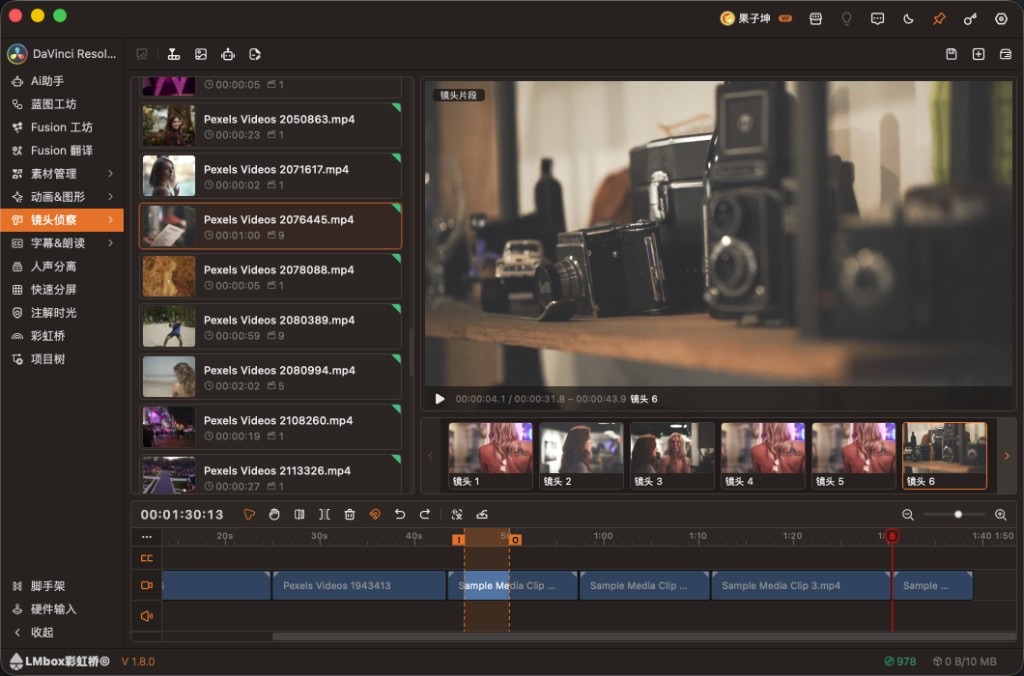
Figure: Shot scout on the desktop, with the video list, preview, shot strip and assembly timeline. The screenshot shows the Chinese interface.
Top bar tools (icons)
| Icon | Name | What it does |
|---|---|---|
| Build search index | Analyzes the footage in the project for description / similar-shot search | |
| Search by timeline frame | Exports the current frame from the connected DaVinci Resolve / Premiere Pro and searches for similar shots | |
| Search by image | Uses a reference image to find shots with a similar look | |
| AI search | Opens the plain-words search (find shots by description) | |
| Assemble from script | Paste a shot list / voice-over script to find shots in bulk and place them on the assembly timeline | |
| Save project | Saves the current Shot scout project | |
| New project | Creates a new project | |
| Projects | Opens the project library / list |
Screen areas
| Area | What it does |
|---|---|
| Video list on the left | The footage in the project. You can drop audio/video in (the empty list shows ) and see the index status and shot count |
| Preview in the middle | Previews the selected shot / the timeline program (the empty state shows ) |
| Shot strip below the preview | The shots cut from the current video, or the search result thumbnails with their match |
| Assembly timeline at the bottom | Arrange first, then import into the host in bulk. It supports trimming, snapping, in/out points, subtitle recognition and more |
Assembly timeline tools
| Icon | Name |
|---|---|
| Select tool | |
| Hand tool | |
| Cascade trim | |
| Split | |
| Delete clip | |
| Snap on / off | |
| Generate subtitles (can be limited to the in/out range) | |
| Import to your editor (send in bulk) |
Right-click menus
Video list
Right-click a video card on the left:
| Icon | Menu item | What it does |
|---|---|---|
| Add to arrangement | Adds the whole video to the assembly timeline | |
| Match shots from other clips | Goes through the shots of this source in order, finds the most similar shot in the other sources and places it on the assembly timeline | |
| Build index | Builds the search index for this video only | |
| Remove | Removes this video from the project |
Shot strip
Right-click a shot thumbnail below the preview:
| Icon | Menu item | What it does |
|---|---|---|
| Add to arrangement | Adds this shot to the assembly timeline | |
| Import to timeline | Imports it into the host's current timeline (at the playhead) | |
| Find similar shots | Suggests similar shots using this shot as the base |
Assembly timeline (clips)
Right-click a clip on the bottom assembly timeline (some items show only for certain clip types):
| Icon | Menu item | What it does |
|---|---|---|
| Import to timeline | Imports this video clip into the host timeline | |
| Recognize subtitles | Recognizes the subtitles of this clip and writes them to the subtitle track | |
| Edit subtitle | Edits the subtitle text (subtitle clips) | |
| Detach audio | Splits audio from picture | |
| — | Link clips / Unlink | Manage the audio-picture link |
| — | Color label | Sets a marker color on the clip |
Assembly timeline (ruler)
Right-click the time ruler:
| Menu item | What it does |
|---|---|
| Set In point | Sets the In point at the playhead |
| Set Out point | Sets the Out point at the playhead |
| Clear In/Out | Clears the In/Out points |
Before you start
- Install and open the LmBox desktop app (1.8 or later is recommended)
- Open DaVinci Resolve or Premiere Pro and check that the editing extension is connected
- In the sidebar, go to "Edit assist" →
- Create or open a project, drop videos in, click , and wait until it is ready before you search
Note
Description search and similar-shot search do not work until the search index is built. Grabbing a timeline frame and importing to the timeline need the extension to be online.
Three ways to search
1. Search by timeline frame
Park the playhead on the picture you want → click → pick by similarity → import into the host timeline, or add to the assembly timeline first and import later.
The steps are the same for DaVinci Resolve and Premiere Pro. In Premiere Pro, the frame may be hidden for a moment while it is grabbed. If that bothers you, let us know through feedback and we can turn it off.
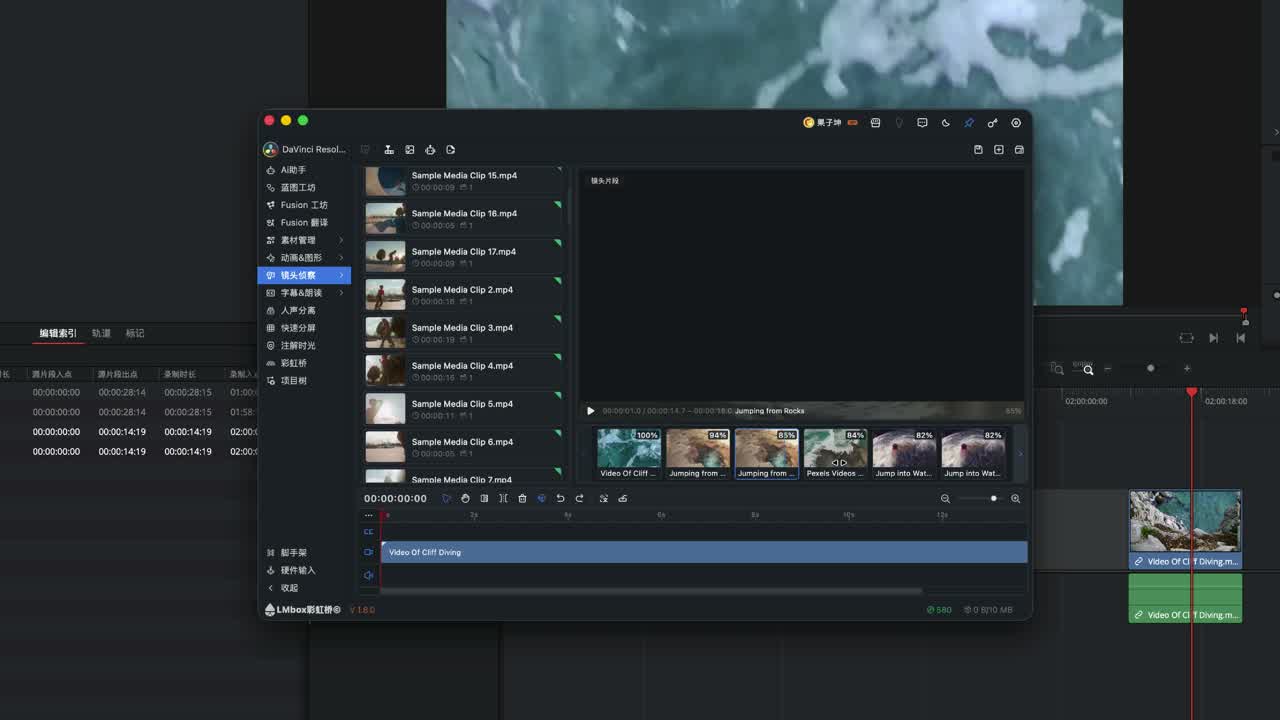
Figure: grab one frame from the timeline and list candidate shots by similarity. The screenshot shows the Chinese interface.
2. Search by description (find shots by description)
Click and type natural language in the search box (for example "diving"). The app first turns it into a description it can search with, then lists shots by match and shows a percentage. Be specific about the scene, subject and action.
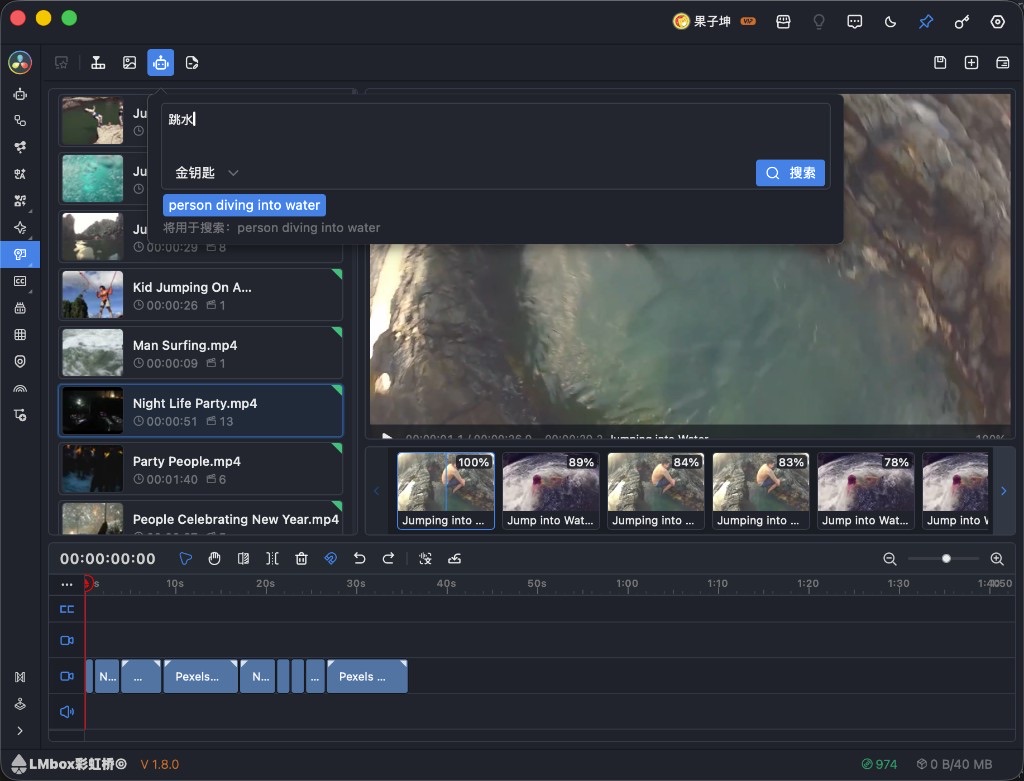
Figure: type "diving" → understanding → results by match. The screenshot shows the Chinese interface.
Understanding the description depends on the model you pick (the official cloud, or a model you set up on your computer). If it fails, reword the description or pick another model. English descriptions work too.
3. Find similar shots
Right-click a result in the shot strip and choose , or use in the top bar, to list other shots with a similar look.
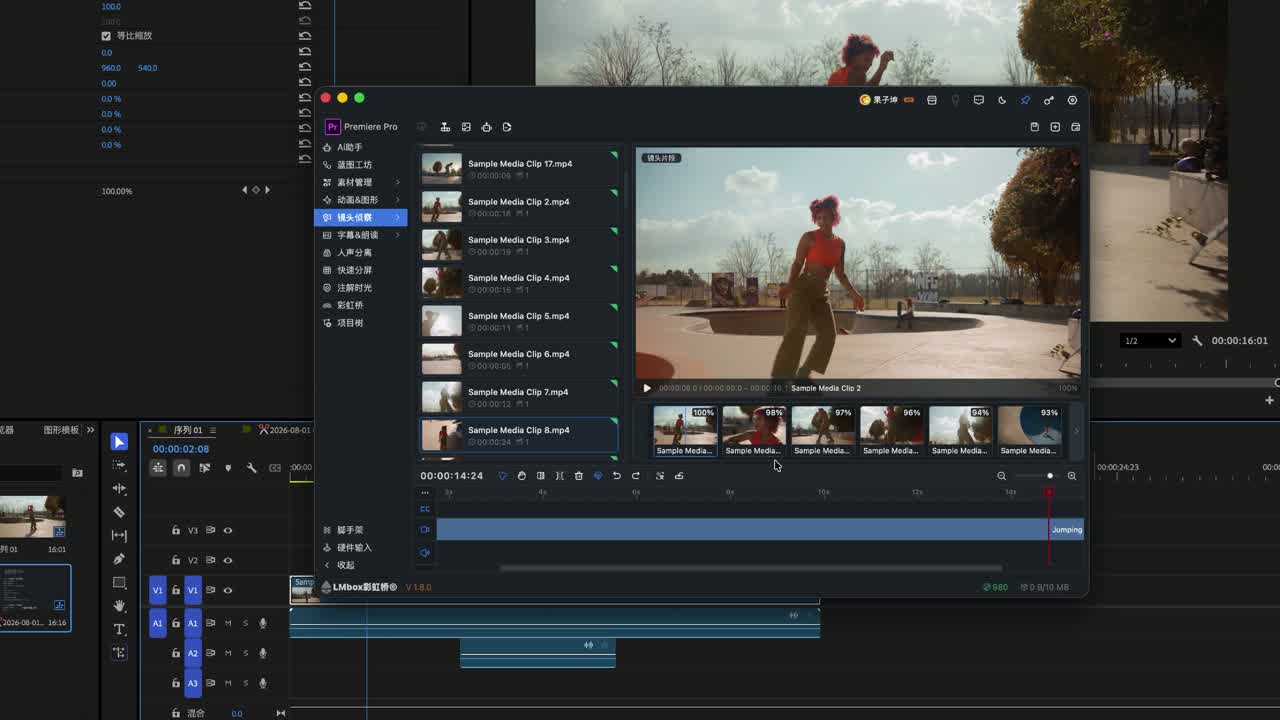
Figure: one shot brings up alternatives with a similar look. The screenshot shows the Chinese interface.
Tip
Search by image / similar search finds shots with a similar look. It is not an ID-style check for people or objects.
How results get onto the timeline
- Import directly: right-click in the shot strip →
- Assemble first, then import: right-click or drag onto the assembly timeline, then click
- Subtitles: click ; set in/out points to recognize only that range
The assembly timeline is new, and its feel will keep improving. Send us feedback if you run into anything.
Advanced: match a finished cut and assemble from a script
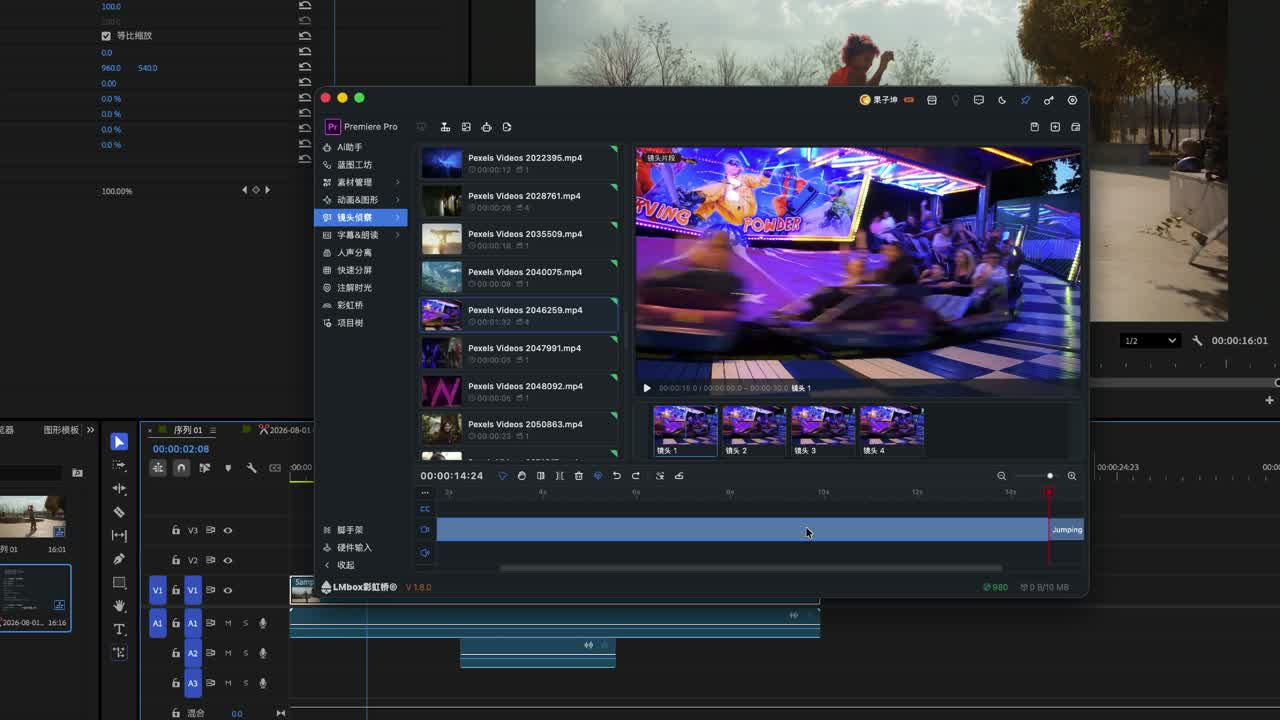
Match shots from other clips
Typical case: you have a finished commentary cut of a film and the full original, and you want to line up the original clips with the shots used in the commentary. Right-click in the video list → (the video itself is excluded).
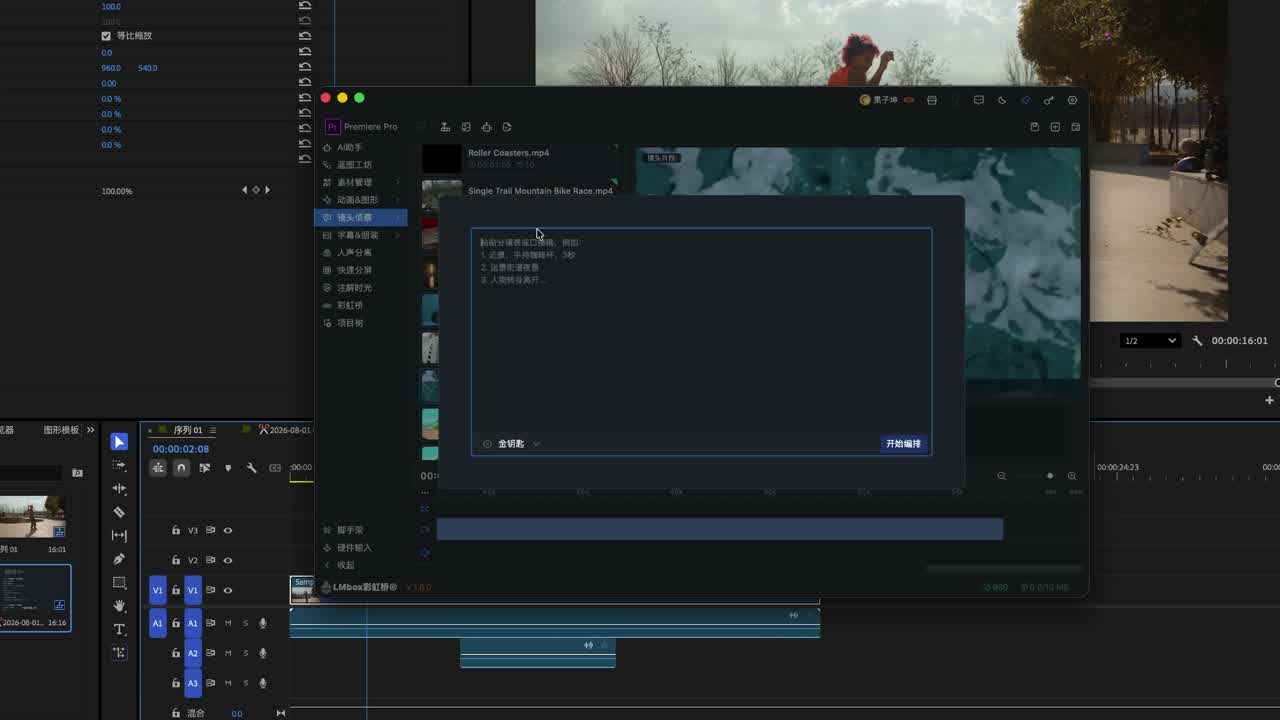
Assemble from script
Click , paste a shot list or a voice-over script, search in bulk and place the shots on the assembly timeline, then import them into your editing app in bulk.
How it differs from a standalone footage search app
| Aspect | LmBox Shot scout | Typical local semantic footage search tools |
|---|---|---|
| Main goal | Find shots and write back to DaVinci Resolve / Premiere Pro | Mostly locate in a library first, then import by hand |
| Host cooperation | Can grab a frame to search and import results to the timeline | Usually do not use an editing extension |
| Assembly | Built-in assembly timeline + bulk import | Mostly search + export clips |
FAQ
Q: What is Shot scout?
A: A footage search and assembly tool in Edit assist: description search, frame grab and similar-shot search, with results imported into DaVinci Resolve and Premiere Pro. Available since LmBox 1.8.
Q: How do I find shots with AI in DaVinci Resolve?
A: Connect the extension → open Shot scout → → search by description or frame → import, or assemble and then import.
Q: How do I search similar shots in Premiere Pro?
A: Same flow as DaVinci Resolve: search by a grabbed frame, or use "Find similar shots" on a result.
Q: How is searching by description different from searching by image?
A: A description is understood first and then searched. Image / similar search matches by the look of the picture.
Q: What is "Match shots from other clips" good for?
A: Lining up shots between a commentary cut and the original film, or between a finished cut and another clip from the same source.
Q: What are the limits?
A: You need to build the index first. Frame grab / import needs the extension online. It does not replace effects and compositing, and the assembly timeline is still being polished.
Further reading
- Lab features overview
- Talking rough cut: word-level rough cut of talking video, also in Edit assist
- Split view: multi-pane layouts on one screen, another desktop efficiency tool
- Install the desktop app
- Demo video · Bilibili
Release notes
2.9.0Opening the page now reopens the last project you used. Hover a shot to preview it with sound, and swipe left and right to find a position.1.9.0When building the index finishes, you can get a system notification and a push alert with the result.1.8.1Fixed writing to DaVinci Resolve landing about one hour off because a custom timeline start was added twice.1.7.3New: build a search index for your videos, find similar shots with text or pictures, and put them together on the assembly timeline, tidy up multiple tracks, and import into the editing extension.