
Stem split


"Stem split" in LmBox splits a piece of audio into several tracks (vocals, drums, bass, other) on your computer, with no upload to the cloud. It suits jobs where you need dry vocals, a backing track, or clean voices pulled out of a noisy place. You can drop a file in, or take audio from the timeline of a connected Premiere Pro, DaVinci Resolve, Final Cut and so on, then send the result back to the current editing app. The sidebar icon is .
Video tutorial
Public class demo: Open on Bilibili
What you will learn
- Set up the runtime and the model in Settings (two steps)
- Drop in a file or get audio from the timeline
- Tick the stems, separate, preview, send / export
- How time depends on your computer, and how to use it as noise reduction
Guide
This is the main Lab guide. The public class is in the video above and on Bilibili: stem split with a local large model.
What it solves
| Pain point | What this page does |
|---|---|
| Cloud tools for pulling a backing track need a subscription, and you worry about your dry vocals leaking | Local separation: the audio is not uploaded |
| You only want vocals or only the backing | Outputs Vocals / Drums / Bass / Other; send what you need |
| A noisy place, and you want to "rescue dry vocals" as noise reduction | Split out the cleaner vocals, then write them back to the timeline |
| The footage is on a Premiere Pro / DaVinci Resolve timeline | Get timeline audio, encode it, show the waveform, then separate |
Before you start (two steps)
Setup is just two steps, easier than instant noodles.
1. The runtime
- Download the model runtime and the model itself (the file suffix differs between Windows and macOS)
- Open LmBox Settings → External tools (or the large model items, depending on the current screen)
- Point to the runtime path and check that it loads
- When the status light turns green, the environment is ready
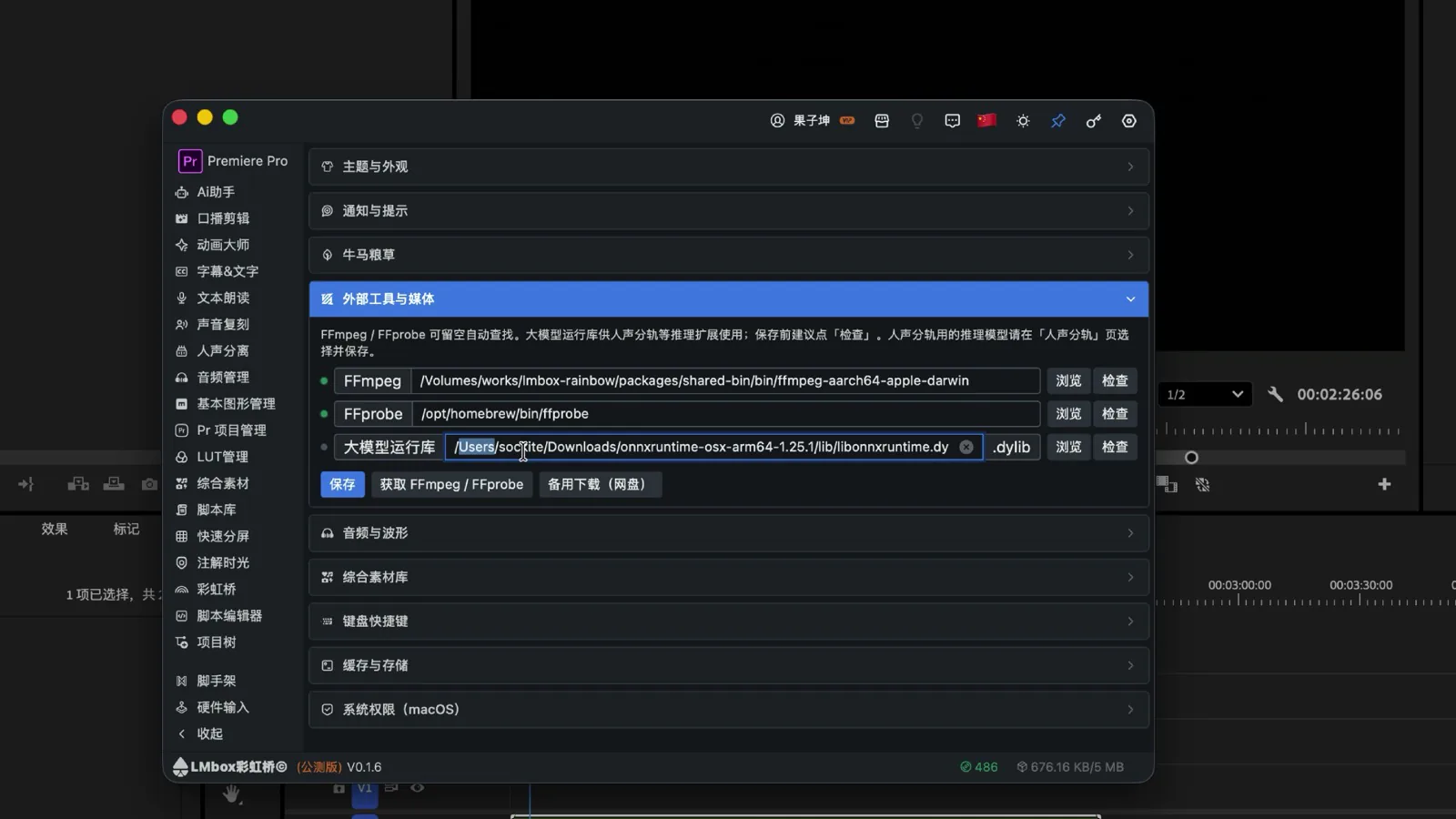
Figure: set the runtime in Settings; a green light means it can load. The screenshot shows the Chinese interface.
2. Back in Stem split, pick the model
- Open from the sidebar
- Pick the model (the model works across platforms)
- Check that the status light is still green, and you are ready to separate
Note
If no local large model is set up, clicking "Separate" takes you to Settings. The weaker your computer, the longer the wait: no upload cost is paid for with time and hardware. Try a short clip first.
How to use it on the desktop
Bring in the audio (pick one)
| Way | How |
|---|---|
| Drop | Drag one audio or video file onto the page. A video has its audio track pulled out first |
| Get timeline audio | Select clips in Premiere Pro / DaVinci Resolve and so on, click the button in the top bar, and wait a moment for encoding before the waveform shows |
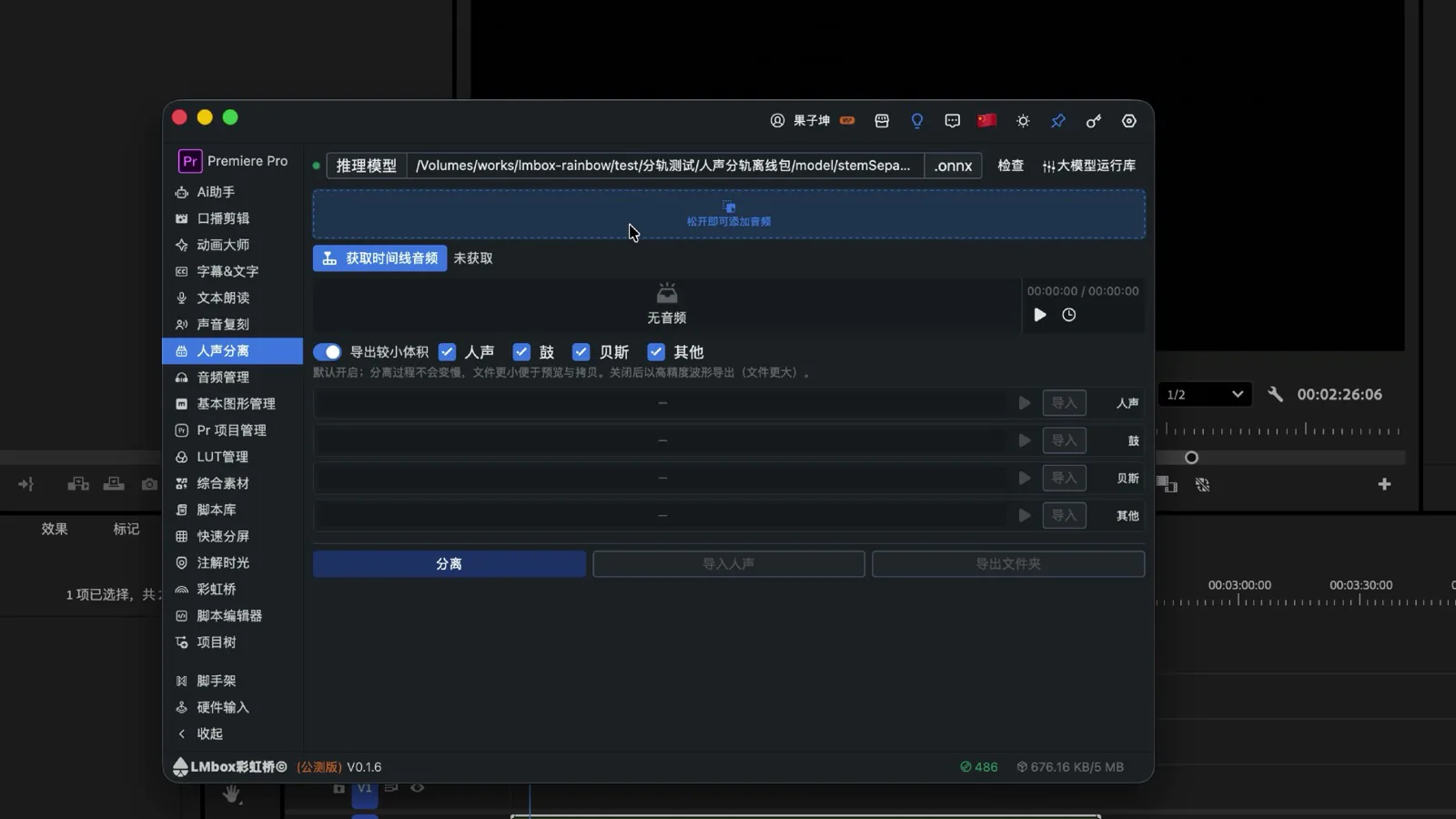
Figure: drop in a file, or get timeline audio from the connected editing app. The screenshot shows the Chinese interface.
Mono audio and unusual formats are converted to stereo automatically so they can be separated.
Options and separating
- In Stems, tick the tracks to output: Vocals, Drums, Bass, Other
- Optionally turn on Smaller file export (on by default: smaller files, and separation does not get slower)
- Click Separate and wait for the model to load and process (you can Stop)
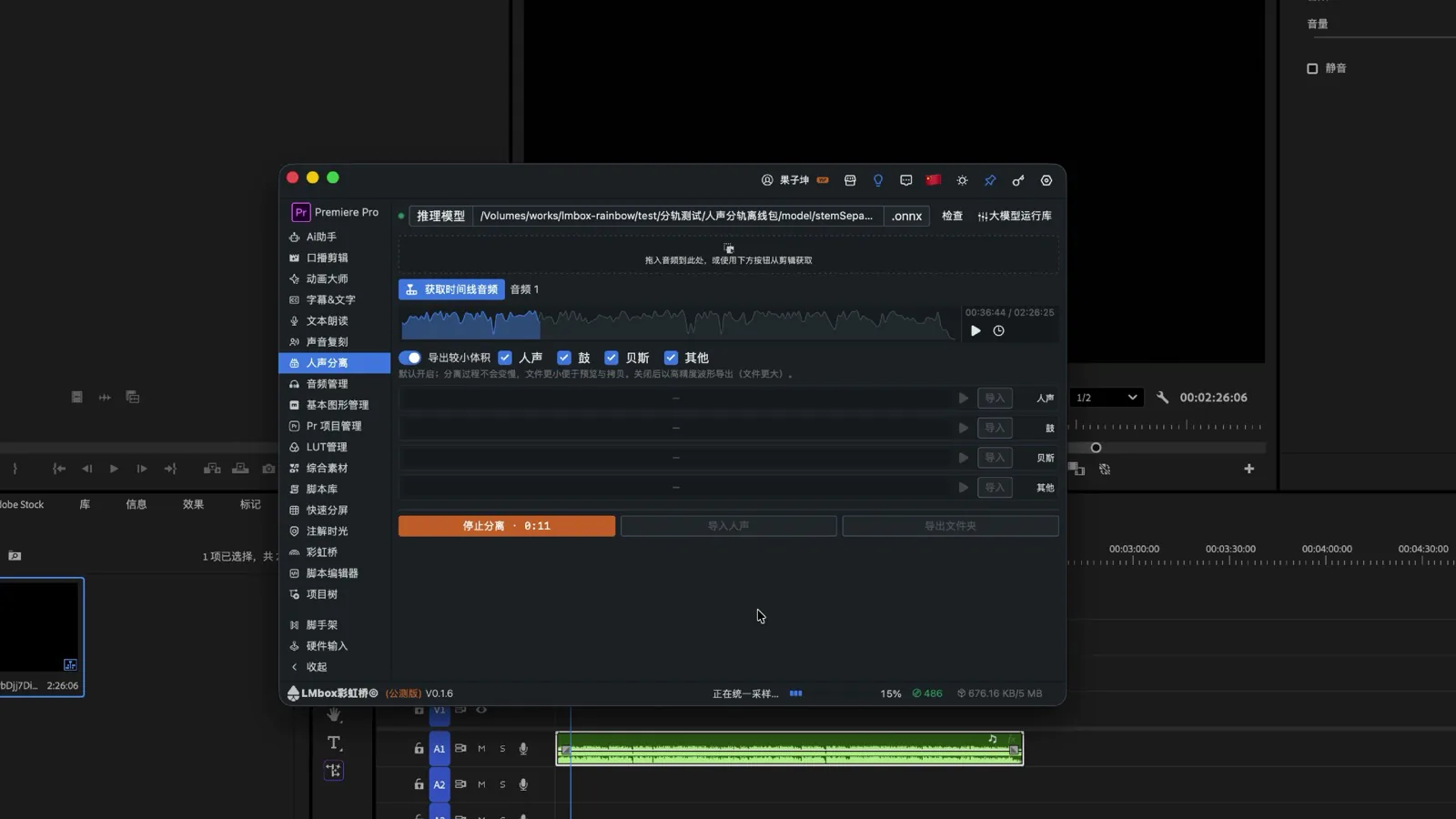
Figure: after you click Separate, be patient; progress depends on your computer. The screenshot shows the Chinese interface.
Results: preview, send, export
When separation is done you usually get 4 tracks (depending on what you ticked):
| Stem | Meaning |
|---|---|
| Vocals | Voice and lead parts |
| Drums | Drums and percussion |
| Bass | Bass line |
| Other | Remaining backing |
Listen to each one, then:
- Send one stem to the connected editing app (for example "Send vocals" or the send button next to each stem)
- Export folder to your computer
- Open History to load earlier stem results in this project (removing a row does not delete exported files)
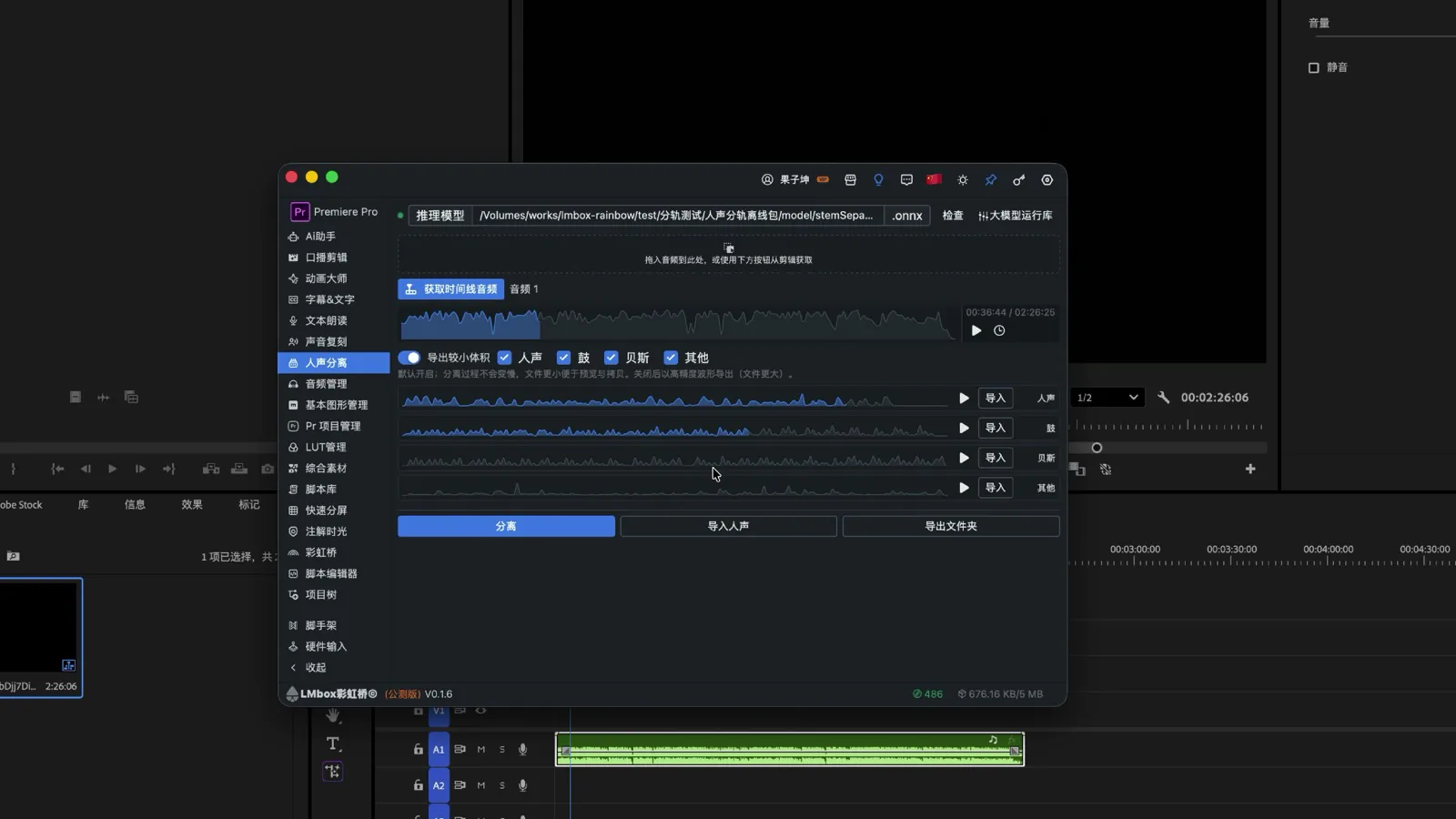
Figure: the Vocals / Drums / Bass / Other preview, which you can send or export. The screenshot shows the Chinese interface.
Recommended flow (summary)
- Set the runtime and model in Settings until the light is green
- Drop in a file, or connect the extension and Get timeline audio
- Tick the stems → Separate → wait
- Listen → send to the editing app or export a folder
FAQ
Q: What is Stem split?
A: A local audio stem tool in LmBox. It splits a sound into vocals, drums, bass and other, and you can send the stems to Premiere Pro / DaVinci Resolve / Final Cut and so on.
Q: Do I need to be online or sign in?
A: Separation runs locally, and your footage is not uploaded for stem splitting. Follow the prompts in your current app version for sign-in.
Q: How is it different from cloud backing-track tools?
A: Your dry vocals are not sent to someone else's server. The cost is your computer's power and time.
Q: Can I use it as noise reduction?
A: For recordings in noisy places, you can separate the relatively clean vocal stem and edit with it.
Q: Why is it so slow?
A: A local large model takes time depending on your computer. Try a short clip first; for more speed, use a stronger computer.
Q: Getting audio from the timeline failed?
A: Check that the extension is connected and the playhead / selected clips are valid. Encoding needs a short wait.
Further reading
- Lab features overview
- Talking rough cut: word-level rough cut of talking video
- Install the desktop app
- Bilibili public class: stem split with a local large model
Release notes
2.7.0Fixed the app only showing a hint when the transcoding tool was missing. It now opens External tools in Settings.1.9.3The main preview waveform now stops when it ends by default, and a loop switch is next to Play.0.2.8Fixed a "stereo required" message when dropping mono or unusual-format audio on this page. It is now converted to separable stereo automatically.0.2.7You can drop a video straight in. The audio track is taken out first and then split, so you do not need to export audio separately.0.1.9Fixed pages such as Read aloud, Voice cloning and Stem split sometimes wrongly saying the lab did not match the one on the left, and needing a restart before the first import, when another media lab had been opened earlier. You can now import directly.0.1.9Fixed audio from Read aloud, Voice cloning, Stem split and the sound library not landing on the track after the first import, when sending several times from the desktop app with the DaVinci Resolve editing extension connected. You can now import again and again.0.1.8Each separated stem also supports dragging a file out. Send is now an icon button, so the work area is more compact.