
Floating toolbar

The Toolkit is a rack built for quick actions: you do not have to switch to the LmBox main window or bring the editing app's window forward to look for menus. Use a shortcut to open the floating toolbar anywhere, and finish import, conversion and more with one click. The sidebar entry at the bottom is .
What you will learn
- Arrange the 12-slot toolkit in the main window and customize slot icons
- Open the floating toolbar with a shortcut and run with one click
- Drop a file into the left slot, watch the lights and connecting lines, then click the matching tool
How it relates to the old "Pr / Ae toolkits"
The old Pr toolkit and Ae toolkit (Chinese only for now) inside the extensions were slimmed-down collections. The desktop Toolkit now carries the same kind of tools in one place and switches the available items with the current editing extension.
Before you start
Pick the right extension and connect the editing app first, so the Toolkit can import and convert for the current app.
- Click the editing app icon in the sidebar and select the target extension (Premiere / After Effects / DaVinci Resolve / Final Cut and so on)
- Open the LmBox extension inside the editing app and keep it connected (see Plug-in manager)
- The extension icon in the sidebar is in color when connected
Set up the toolkit (main window)
Click at the very bottom of the sidebar to open the setup page:
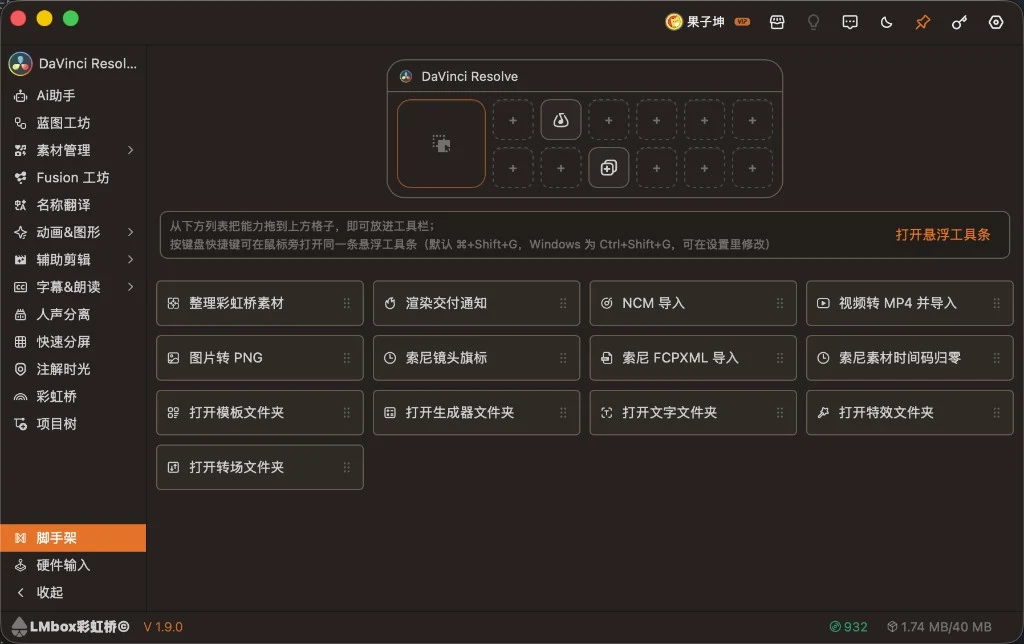
Figure: the 12-slot toolkit on top, the list of draggable tools below, and "Open floating toolbar" in the middle. The screenshot shows the Chinese interface.
| Area | What it does |
|---|---|
| Toolkit on top | 6×2 = 12 slots; "+" means empty, filled slots show the tool icon |
| Hint in the middle | Lines on the left and right: left, drag from the list on the left / click a slot to edit the dropped item; right, the "Shortcut + keys" button opens the floating toolbar; the remove card has its own "Drop to remove" |
| Open floating toolbar | Open the same floating toolbar you use while editing, right now |
| Tool list below | Tools available for the current extension; the left side is only a drag source |
| Remove card on the right | Drag a slot onto "Drop to remove" to clear it |
| Settings at the bottom right | Appear after you click a filled slot: icon at the top, then that tool's own settings (if any) |
How to arrange
- Drag from the list on the left into an empty slot above
- Slots on the rack can be dragged to swap places; drag onto "Drop to remove" on the right to remove one
- Click a filled slot (only in the main window) to open that slot's settings, where you can change the icon, size and description
The list below only shows items that the current extension supports and that are not on the rack yet; it changes when you switch to Premiere or DaVinci Resolve.
Set a slot icon
In the main window's Toolkit page, click a slot (not on the floating toolbar), and the slot's look settings open at the top right:
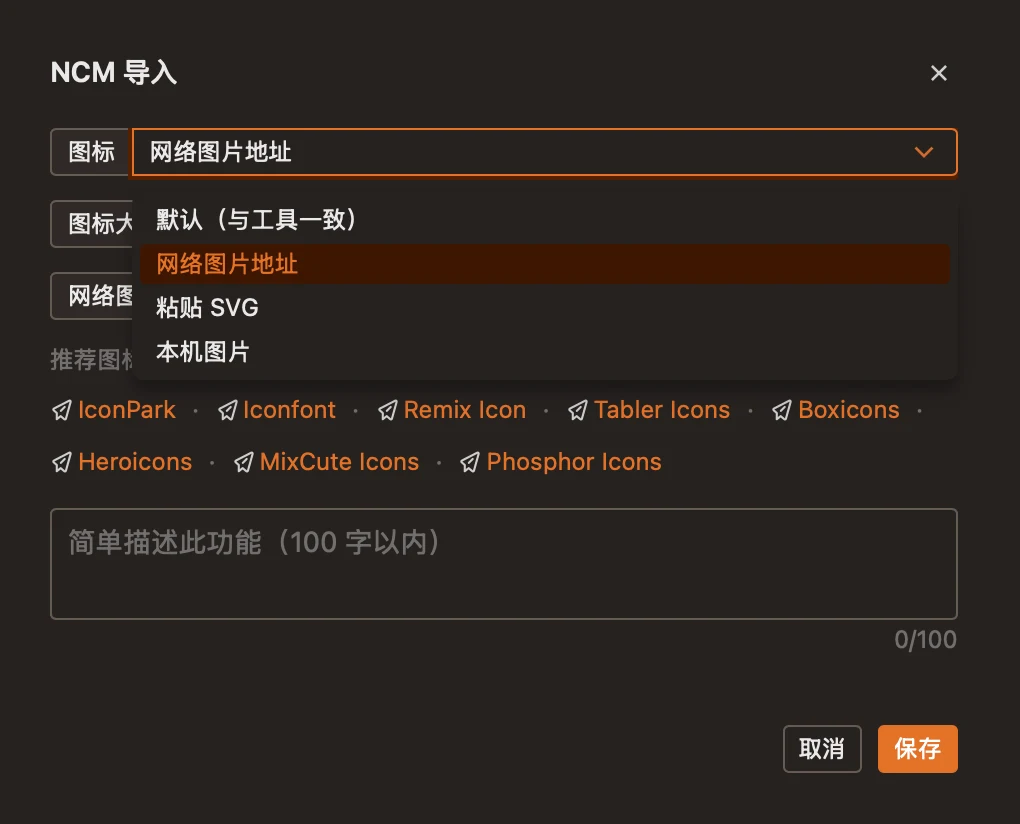
Figure: slot settings: icon source, recommended icon sites, description and save. The screenshot shows the Chinese interface.
| Item | Description |
|---|---|
| Icon | Default (same as the tool) / Web image / Paste SVG / Local image |
| Icon size | Adjust the display size for a custom icon |
| Web image address and others | After choosing a source, enter the URL, paste the SVG or pick a local image |
| Recommended icon sites | The dialog links to IconPark, Iconfont, Remix Icon and similar sites to help you find images |
| Description | A short note on this tool (up to 100 characters) |
| Save | Write it to the slot; Cancel discards the changes |
After saving, both the toolkit in the main window and the slot on the floating toolbar use your icon:
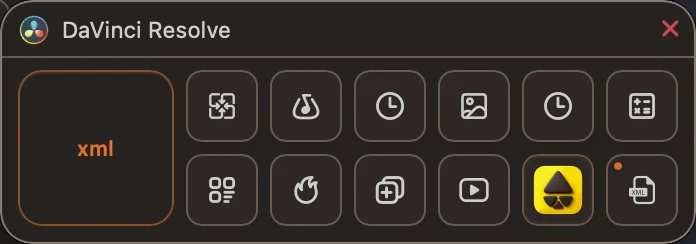
Figure: a custom icon in effect on the floating toolbar; other slots can still use the default outline icons. The screenshot shows the Chinese interface.
TIP
Clicking a slot on the floating toolbar runs the tool; to change the icon, go back to the Toolkit page in the main window and click the slot.
Floating toolbar: no need to open the main window
Once set up, while editing use the shortcut to open the same toolbar next to the mouse. The main window can be minimized or covered and you can still work with one click.
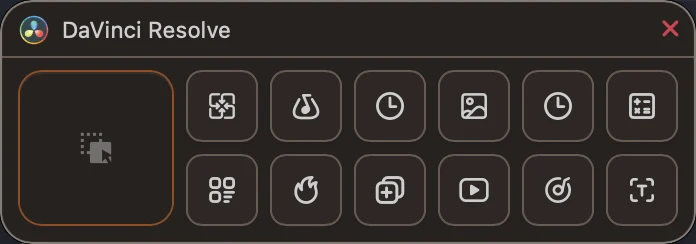
Figure: the floating toolbar: the drop slot on the left, 12 tool slots on the right; the title is the current extension (for example DaVinci Resolve). The screenshot shows the Chinese interface.
| Action | Description |
|---|---|
| Open | Default ⌘+Shift+G / Ctrl+Shift+G (change it in Settings → Keyboard shortcuts → Show Toolkit quick toolbar) |
| Run | Click a tool slot on the right; for most tools, if the drop slot is empty it first asks you to choose files |
| Close | Esc, or click close on the title bar |
| Click an empty slot | Opens the Toolkit page in the main window so you can keep editing the rack |
The main window handles arranging; the floating toolbar handles running. Both share the same 12 slots.
Some tools unfold an area at the bottom of the floating toolbar when you click the slot (for example rename, macros, palette); fold it again when done, or click the slot once more.
Dropping a file: while dragging
When you drag a local file onto the big square on the left (the drop slot), the slot shows its extension (such as png) and a file name hint:
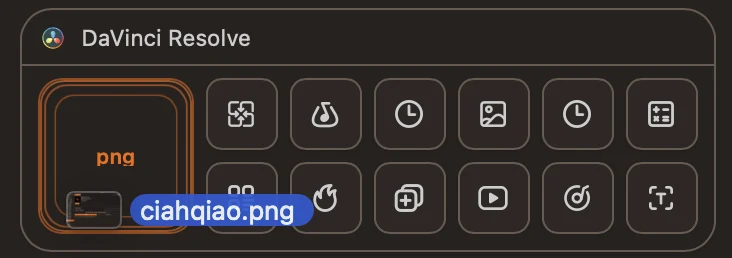
Figure: while dragging: the left slot shows the file type and file name. The screenshot shows the Chinese interface.
After you release, the file sits in the drop slot, and you can click the matching tool on the right without a file picker appearing.
After dropping: lights and connecting lines
When the drop slot already holds a file, the tool slots that can handle that type get an orange outline (lit); hover over a lit slot and a guide line from the drop slot appears, showing that clicking this slot will use the dropped file:
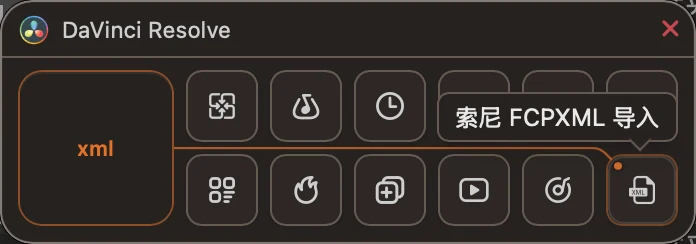
Figure: after dropping an xml, "Sony FCPXML import" lights up and a connecting line appears on hover. The screenshot shows the Chinese interface.
| Drop slot state | When you click a tool slot |
|---|---|
| Has a file | Runs directly with the dropped file |
| Empty | Most tools open a local file picker; clipboard import reads the clipboard |
TIP
Click the lit slots first; a slot that is not lit usually does not match the current file type. Hover over the extension in the drop slot to clear what you dropped.
Main window vs. floating toolbar
| Toolkit page in the main window | Floating toolbar | |
|---|---|---|
| Purpose | Arrange and adjust the rack, change settings | Run quickly from anywhere |
| Click a slot with an icon | Opens the settings at the bottom right | Runs directly (rename, macros and palette unfold at the bottom first) |
| Left drop slot | None | Yes, drop files to light up and connect |
Import and convert notes
In Settings, make sure the cache folder is usable; some formats need the transcoding tools set up under "External tools & media".
Default toolkit (first use)
| Extension type | Default, left to right |
|---|---|
| Premiere / After Effects / DaVinci Resolve / Pr (UXP) / Final Cut | Multi-search → Clipboard · file import → Rename local files → Convert video to MP4 → Convert audio to WAV → Convert image to PNG |
| Photoshop / Illustrator / InDesign | Multi-search → Clipboard · file import → Rename local files → Convert image to PNG |
Tools with settings
After you click these slots in the main window, the bottom right shows dedicated settings besides the icon. See each guide for how to use them:
| Tool | Description |
|---|---|
| Multi-search | Search engines, browser bookmarks, system apps, macros |
| Rename local files | Recipes and blocks |
| Macros | Recording and the macro library |
| On-screen keys | Size, position, stacking |
| Art student's palette | Four boxes to fill |
Import, convert, ink, Sony exchange and other tools simply run when you click the slot; their guides are on their own pages. For the full list see the Toolkit features overview.
FAQ
Q: Nothing happens when I press the shortcut?
A: Make sure LmBox is running; go to Settings → Keyboard shortcuts and see whether "Show Toolkit quick toolbar" was changed.
Q: The floating toolbar says to pick an editing extension first?
A: Go back to the sidebar of the main window, pick the target extension and connect the editing app.
Q: Conversion failed?
A: Open Settings → External tools & media, check the transcoding tools, then click Apply.
Q: No slot lights up after dropping?
A: The current extension may have no tool matching that extension, or that tool is not on the rack yet; try another file type or go to the setup page and drag the matching tool in first.
Further reading
- Toolkit overview
- Settings: shortcuts and transcoding tools
- LmBox desktop install
- Plug-in manager
- Desktop release notes (Chinese only for now)
Release notes
2.7.0Fixed the floating toolbar being clipped around its edges on some Windows computers; corners now show in full.2.1.3"Sony lens flags" now supports Premiere; in DaVinci Resolve the progress bar follows until writing is done.2.1.2Added "Grab timeline stills": tick clip start, end or markers to batch-save timeline frames to a folder; available in Premiere, After Effects and DaVinci Resolve.2.1.2Added "Art student's palette": lay the gouache, plate and water bucket from the art studio under the floating toolbar.2.1.1Closing the main window closes the floating toolbar too; clicking the desktop icon, tray or taskbar opens the main window right away.2.1.0Added "On-screen keys": when on, it shows pressed shortcuts and mouse combinations layer by layer on screen (Mac / Windows); the position can be pinned or follow the mouse.2.1.0Added "Macros": record keyboard or mouse actions and run them again after saving (Mac / Windows).2.1.0Added "Rename local files": drop local files or folders in, then pick a recipe at the bottom of the floating toolbar to batch-rename by prefix, number, metadata and more, with undo for the most recent batch.2.1.0Sidebar feature pages can be put into the Toolkit; the setup page supports categories and search; the floating toolbar can search tools not yet in a slot; added Multi-search (search engines / browser bookmarks / system apps switches); floating search can match local browser bookmarks; pasted links can be opened and local media paths can go onto the track.1.9.0Added "Render delivery notify": watch the DaVinci Resolve render queue and remind you with a system notification and push when it ends.1.0.0Added "Collect LmBox media": archive the files in the project's LmBox bin by original category into a folder; running again skips files already there.0.2.3Added "Clipboard / file import": one click to import images, audio and video from the clipboard or the drop area into the current editing extension.0.2.2When connected to After Effects you can set up "Import subtitles (SRT)" to drop in or choose a subtitle file and import it into the current composition.0.2.0Added the Toolkit: drag tools into toolbar slots on the page; the shortcut opens the floating toolbar next to the mouse; available items change with the current editing extension.0.2.0File tools: NCM import, audio to WAV, video to MP4, image to PNG (also for some design extensions).0.2.0Supports putting a file into the left drop slot of the floating toolbar first, then clicking the slot to run.0.2.0DaVinci Resolve offers Sony lens flags, Sony FCPXML import, zeroing timecode, and opening the Fusion templates / generators / titles / effects / transitions folders; it can import edit exchange lists (including exchange packages).0.2.0When the floating toolbar has no short hint and no progress, the title row shows the name of the currently selected editing extension.