
Macros

Macros record a set of keyboard or mouse actions so you can run them again any time. They suit repeated clicks or repeated shortcuts that you want to fold into one slot.
What you will learn
- Create a macro in the main window and choose whether to record mouse or keyboard
- Start recording after the countdown and end with F8
- Pick a macro at the bottom of the floating toolbar, set loops and interval, then run
Where to find it
- Open in the sidebar
- Drag Macros into an empty slot
- Click the slot in the main window: record, edit steps and manage the library at the bottom right
- Click the slot on the floating toolbar: saved macros are listed at the bottom, and clicking one runs it (no recording here)
Recording and playback work on both Mac and Windows.
Settings at the bottom right
The panel edits only the current macro at a time.
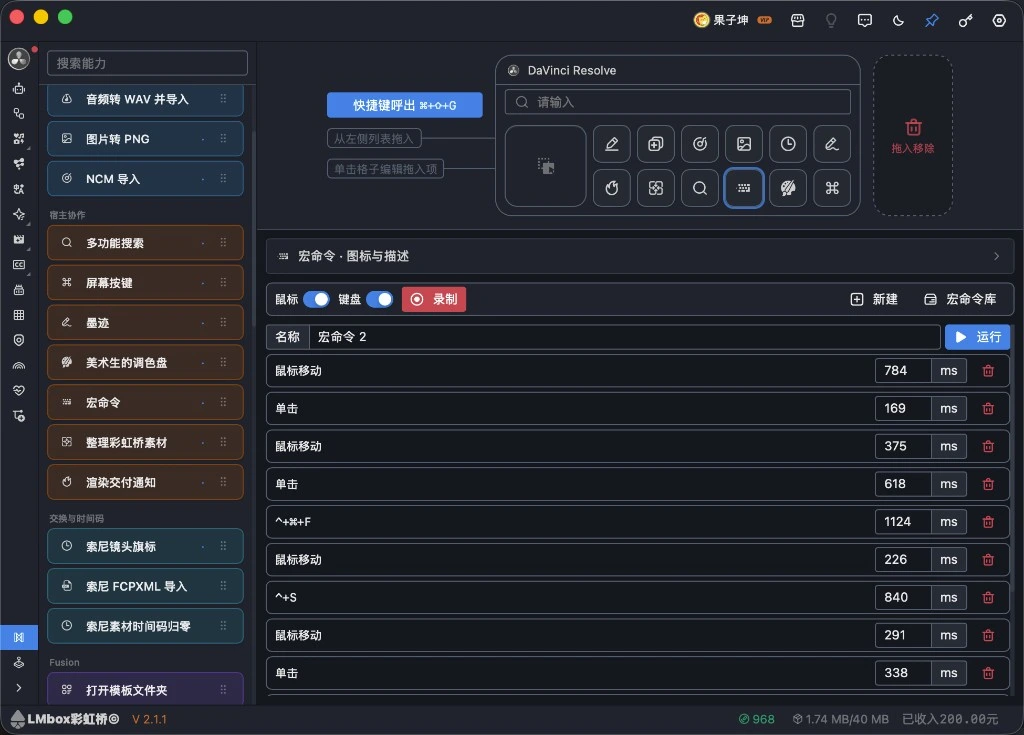
Figure: click the macro slot in the main window: mouse / keyboard switches, record, current macro name and the actions step by step. The screenshot shows the Chinese interface.
| Area | What it does |
|---|---|
| Mouse / Keyboard | Choose what to record before you start; at least one must be on |
| Record | A full-screen countdown, and the main window collapses first; end recording with F8 |
| Name | The name of the current macro |
| Step cards | Each step shows the key or mouse action and the wait (ms) until the next step; the last step shows no wait |
| New | A blank macro; click Record again to record into it |
| Library | Switch between or delete existing macros |
Recording overwrites the current macro; it does not save a second copy beside it. To keep the old one, create a new macro first, then record.
Turn on the keyboard or mouse switch before recording. If you record keyboard only, mouse moves are not captured.
Mac
The first time you record or play back, macOS may ask you to turn on the Accessibility permission. The footer warns you if it is not granted.
Use it on the floating toolbar
Once the bottom expands:
| Item | Description |
|---|---|
| Loops | How many times the whole macro runs back to back |
| Wait | How many milliseconds to wait between runs (default 100) |
| Macro list | Click a row to start playback |
During playback the floating toolbar collapses first so it does not block the UI you need to click. If the list is empty, create and record a macro in the main window first.
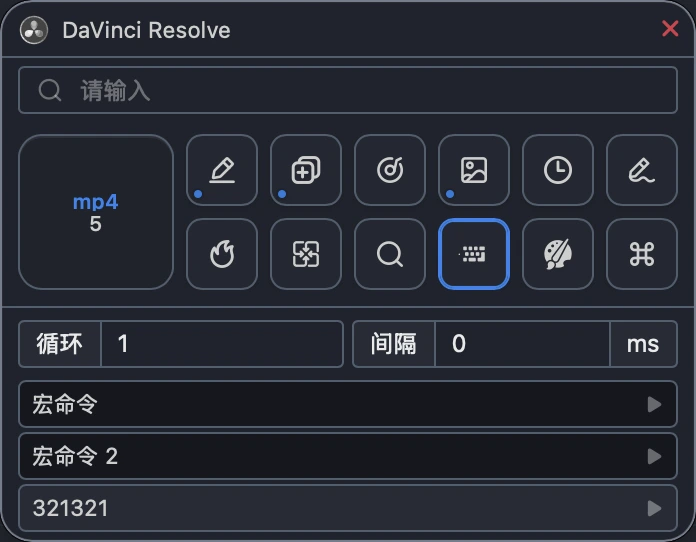
Figure: saved macros are listed at the bottom of the floating toolbar; change the loops and wait, then click a row to run. The screenshot shows the Chinese interface.
You can also turn on the "Macros" switch in Multi-search, then find a macro in the search box and run it.
Works with
All Toolkit hosts. A macro records the system keyboard and mouse, and is not tied to any one editing app.
Not supported for now
It cannot find images or colors, and there is no loop condition or scripting language. The first version is simply "record once, play back again".
FAQ
Q: It says nothing was recorded?
A: Make sure the keyboard or mouse switch was on before recording, and press keys only after the countdown ends.
Q: It says the current system is not supported?
A: Mac and Windows are supported for now. Other systems cannot use it yet.
Q: Clicking the slot on the floating toolbar does not start recording?
A: That slot on the floating toolbar only runs existing macros. To record, click the slot in the main window.