
Rename local files

Rename local files only changes the names of the local files or folders you drag in. It does not change clip names on the timeline and does not relink the editing project.
What you will learn
- Add recipes at the bottom right of the main window and build a new name from blocks
- Drag files into the floating toolbar, click the slot, then pick a recipe at the bottom and apply
- Use "Undo" to take back the most recent rename
WARNING
This changes file names on disk. Make sure the files are not locked by another app first; if you get it wrong, use Undo on the floating toolbar (it only undoes the most recent rename).
Where to find it
- Open in the sidebar
- Drag Rename local files into an empty slot (it is already on the default toolkit on a fresh install)
- Click the slot in the main window: maintain recipes at the bottom right
- On the floating toolbar: first drag files or folders into the left slot (it lights up), then click the rename slot; once the bottom expands, pick a recipe and click Apply
TIP
Do the renaming on the floating toolbar. The slot in the main window only edits recipes; clicking it does not change names on disk.
Settings at the bottom right: recipes
The title is Add rename recipes. Each recipe is a row of blocks that build the new file name from left to right (the extension stays as it is).
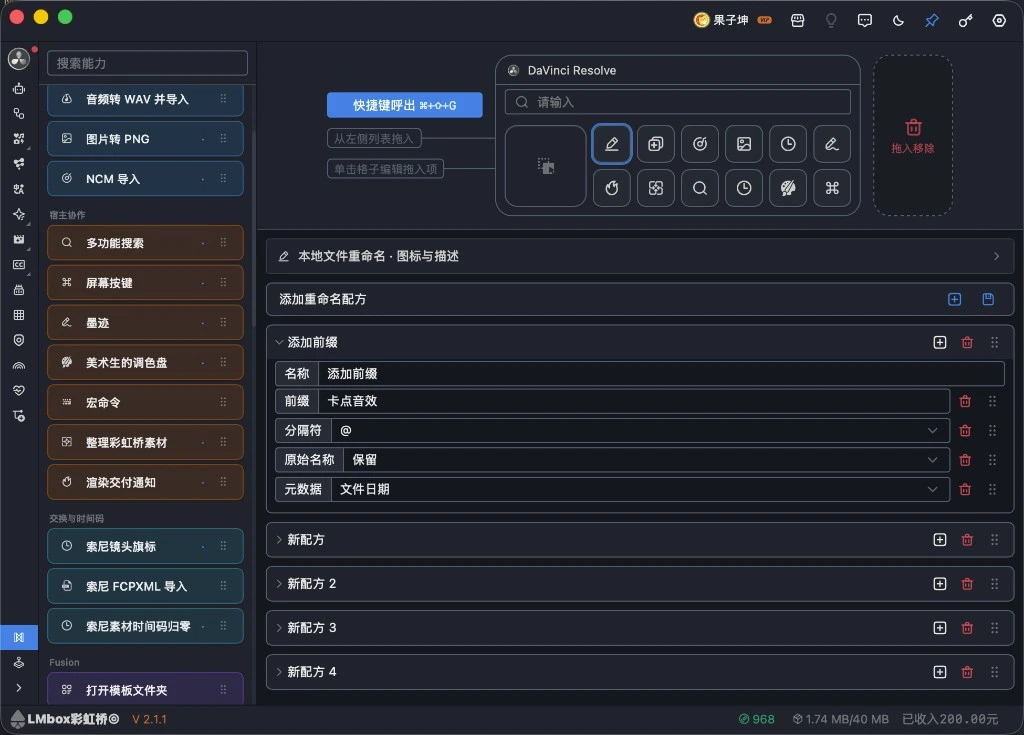
Figure: click the rename slot in the main window: expand a recipe and build a name from prefix, separator, original name, metadata and other blocks. The screenshot shows the Chinese interface.
| Action | Description |
|---|---|
| Add | Create a recipe with a default name and save it right away |
| Name on the bar | Editable; click the bar to expand / collapse (only one is expanded at a time) |
| Add block | Append a block at the end of the current recipe |
| Drag handle | Reorder recipes, or reorder blocks |
| Delete | Remove the recipe; you are asked to confirm |
It comes with one "Add prefix" recipe by default. You can add your own.
Common blocks
| Block | What it does |
|---|---|
| Original name | Keep or remove the original file name (without extension) |
| Regex replace | Only when the original name is kept: change this part with Find / Replace |
| Prefix / Suffix | Add fixed text before or after the name |
| Number | Batch numbering; you can change the start number |
| Separator | Insert -, _ and the like between two parts (allow-listed characters) |
| Parent folder | Use the names of parent folders, 1 to 9 levels |
| File date / Size | Modified date or size on this computer |
| Metadata | Resolution, frame rate, duration, timecode, codec and more (written only if it can be read; otherwise that part is skipped) |
| Random | Add a random string |
Blocks are saved as soon as you arrange them. On the floating toolbar you can also add or remove blocks of the recipe currently selected; it edits the same set of recipes.
Use it on the floating toolbar
- Drag files or folders into the left drop slot (several paths allowed)
- Click the rename slot; the bottom expands
- Pick a recipe, and change blocks if needed
- Click Apply
- To restore that batch, click Undo
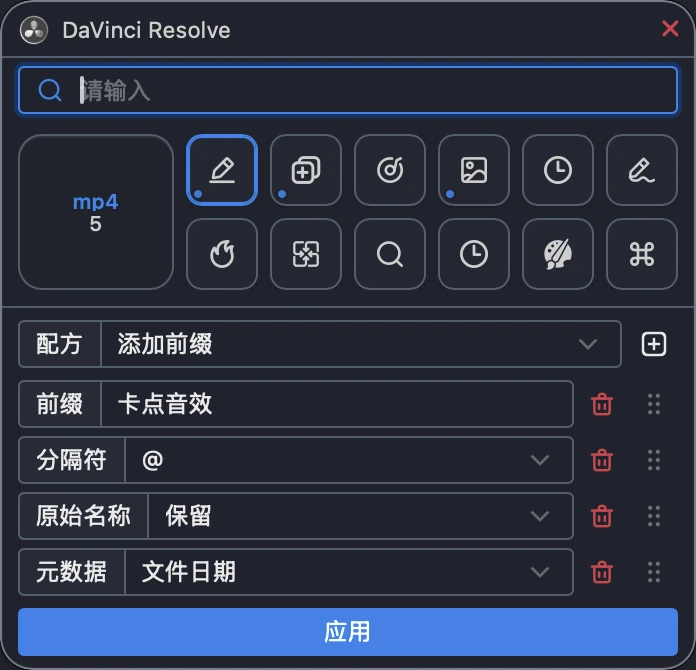
Figure: when the drop slot has files the rename slot lights up; pick a recipe at the bottom, change blocks, then Apply. The screenshot shows the Chinese interface.
If the drop slot is empty, clicking the slot asks you to choose files first.
Works with
All Toolkit hosts. It does not depend on whether a project is open; it only uses local paths.
FAQ
Q: It says to drop files or folders first?
A: Put the items to rename into the left slot of the floating toolbar, then click rename.
Q: How many were renamed and how many skipped?
A: Name conflicts, missing permission or files in use are skipped; the footer tells you how many were renamed and skipped.
Q: The clip names on the timeline did not change?
A: That is expected. This tool does not change clip names in the editing app.