
Multi-search

Multi-search sits in a Toolkit slot: after you open the floating toolbar, use this slot to search the web and your local browser bookmarks, or to open a system app or a saved Macro.
What you will learn
- Put search into the 12 slots and turn the four sources on or off at the bottom right
- Add your own search engine: search once in a browser, then paste the address-bar link
- Type or paste what you want in the floating toolbar and search
Where to find it
- Open in the sidebar
- Drag Multi-search from the list on the left into an empty slot
- Click the slot in the main window: the search settings appear at the bottom right
- Click the slot on the floating toolbar: opens search and lists results from the sources you turned on
On first use it comes with a few common search engines, which you can delete or edit.
Settings at the bottom right
After you click the search slot on the toolkit, a dedicated panel appears at the bottom right besides the slot icon:
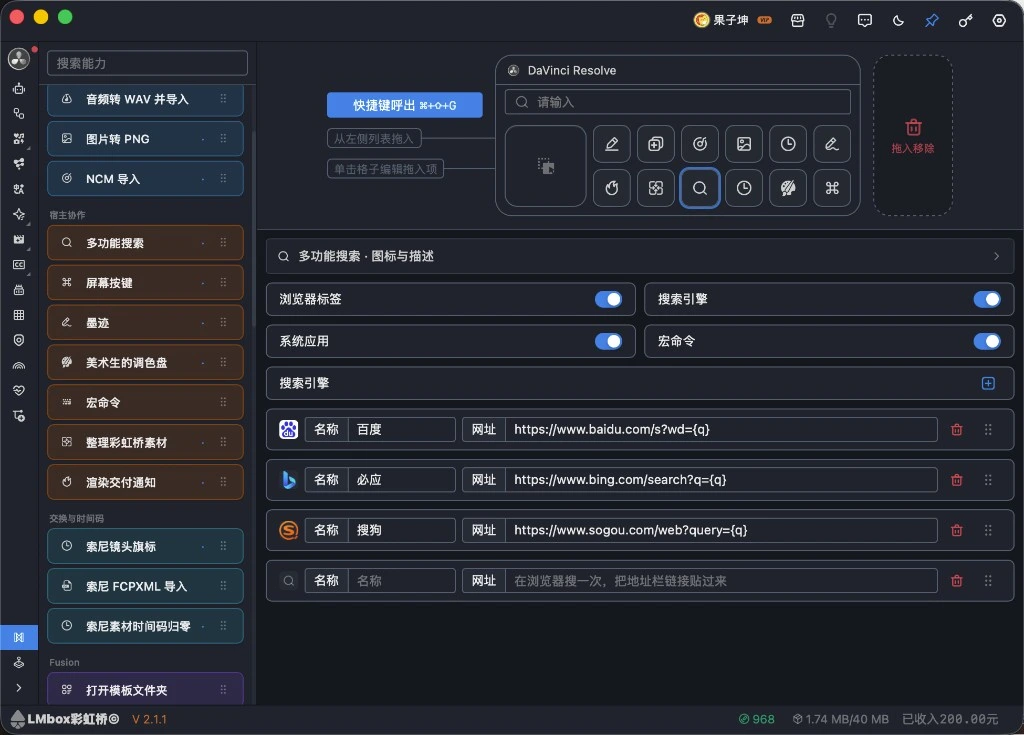
Figure: click the search slot in the main window: four source switches, and search engines you can add and reorder. The screenshot shows the Chinese interface.
Four sources
| Switch | When on, the floating search shows |
|---|---|
| Browser bookmarks | Tabs and bookmarks from the browsers on this computer |
| Search engines | The website searches you added |
| System apps | Apps installed on this computer |
| Macros | Saved macros, one click to run |
Turn one off and the floating search stops listing that kind.
Search engine list
Click Add for a new row: fill in the Name, then paste into URL the link of one complete search results page from your browser. The app turns it into a usable template, so you do not have to write replacement markers yourself.
- If the name is empty, one is created from the URL automatically
- Drag the handle at the end of a row to reorder
- You are asked to confirm before deleting
WARNING
Paste the link of a results page that has "been searched once". A site's home page alone usually cannot be used as a search engine.
Use it on the floating toolbar
- Open the floating toolbar with the shortcut (see Floating toolbar)
- Click the search slot
- Type or paste what you want to find
- Click an item among the listed engines, bookmarks, apps or macros
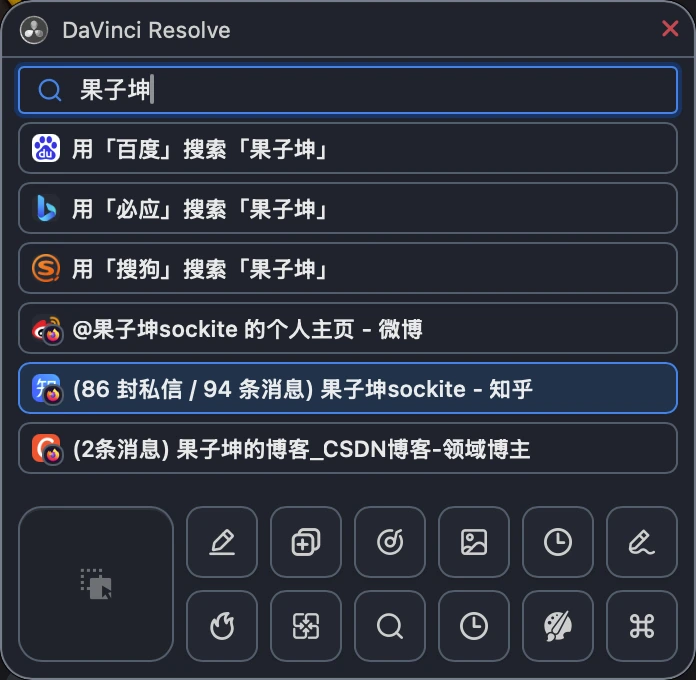
Figure: after typing a keyword, search engines are on top, and browser bookmarks or open tabs can appear below. The screenshot shows the Chinese interface.
You can also paste a web link directly to open it; and when "Clipboard / file import" is in a slot, a local media path can be used to import it onto the track.
Works with
All Toolkit hosts (Premiere / After Effects / DaVinci Resolve / Final Cut / Photoshop and so on). You can search the web and bookmarks even without an editing app connected.
FAQ
Q: It says to add at least one search engine first?
A: Click the search slot in the main window, turn on the "Search engines" switch and add a row; it saves when the field loses focus.
Q: No browser bookmarks on the floating toolbar?
A: Make sure "Browser bookmarks" is on at the bottom right; the matching browser must be installed on this computer and have bookmarks.